
Article Management in Manufacturing Companies
All products and components that have a specific meaning in production or sales – such as raw materials, intermediate products, and finished goods – need to be entered into ERPLY Books as separate articles.
This manual is intended for manufacturing companies.
All products can be managed in the module “Sales” / ”Purchase” -> “Purchase and Sales Articles”.
More information about articles in general can be found here.
Article Code on Invoices
If you want the article code to appear on invoices in addition to the article name, go to Configuration (“Settings” -> “Configuration”) and enable the rule “Show code in article search”.
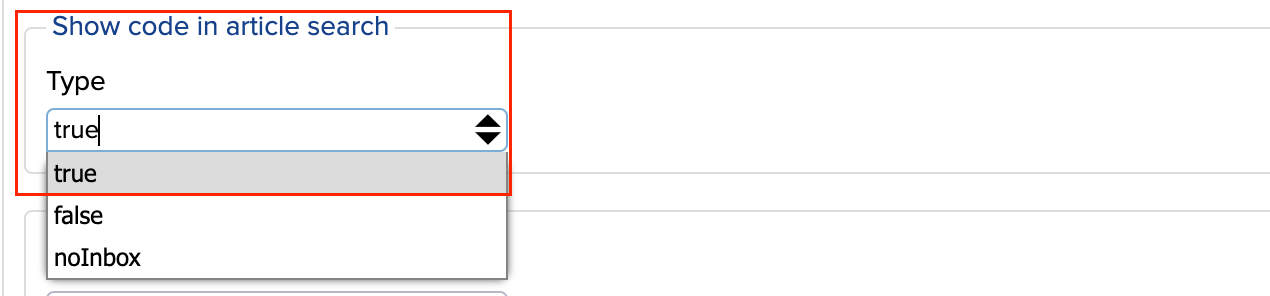
Once selected, click the green “Save” button and refresh the page for the change to take effect.
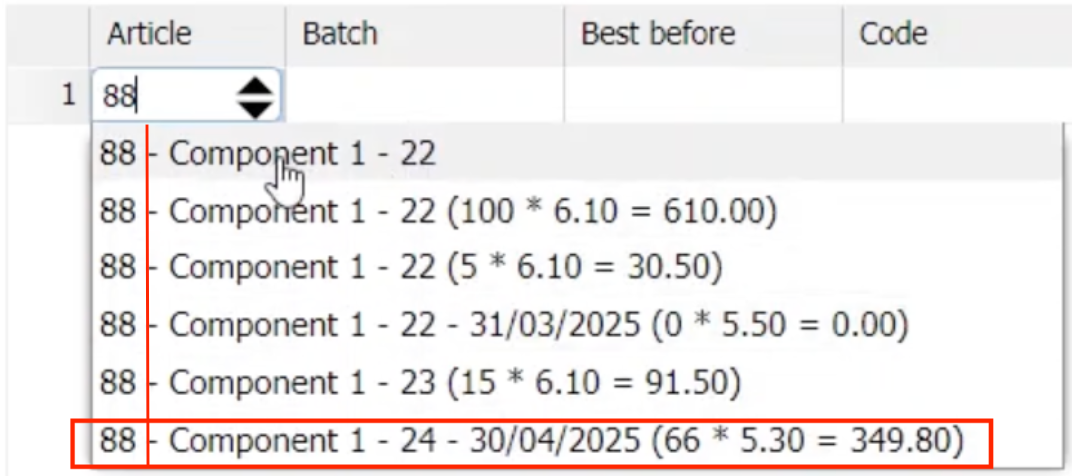
From then on, when opening any invoice, the article code (if previously added to the article) will be displayed in front of the article name.
Assigning Product Groups “Purchase and Sales Articles”
Every product belongs to a product group. This helps keep data organized and makes later reporting easier.
In the “Product group” and “Product category” fields, you can assign several options.
Under the “Product group” field, you can find all product groups. If you want to add a product group, click the “+ Add/Edit” button.
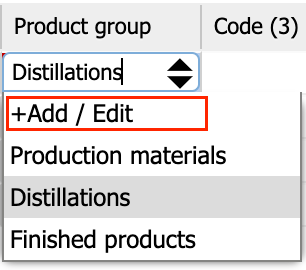
A window will open where you can add or edit product group names.
- Code – for distinguishing in the system
- Name – the name of the product group
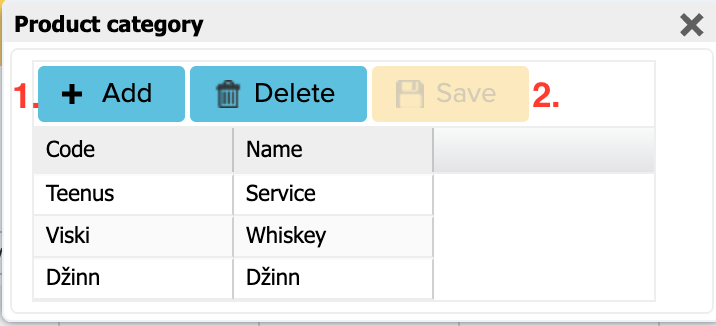
Once done, click “Save”. The new options will then appear on the “Product category” list.
Product Groups and their use
If a company uses hundreds of different products (raw materials, distillates, packaging etc.), grouping them helps keep the system organized and makes it easier to track production and sales.
Different products can be divided into the following groups, for example:
- Production materials – components used for manufacturing finished products.
- Distillates – intermediate products, such as infusions and unfiltered/filtered distillates, which are not finished products yet.
- Finished products – complete in-house products ready for sale.
- Non-primary products – products also sold but not belonging to the main category (e.g. bottles of tonic water).
Note: Product group names do not have to be fixed – you can customize them according to your company’s needs (e.g. split “Distillates” into several subgroups).
A product group needs to be assigned to each product so that the system can distinguish them and accurately reflect them in production and sales.
Creating Products
When the “Purchase-Sales Articles” module is open, click the “+” button in the black menu bar at the bottom.
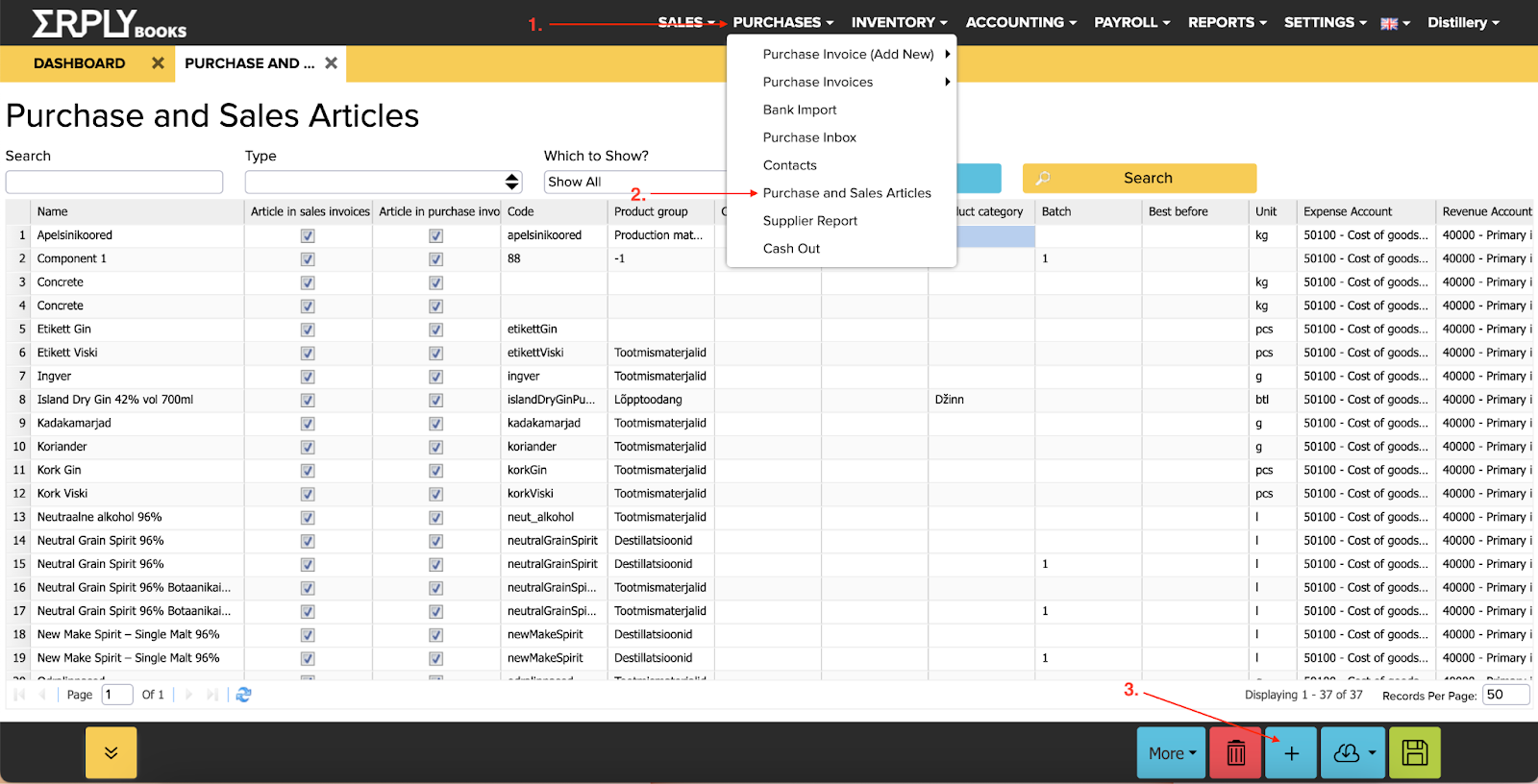
A separate window will open where you need to enter the following product information:
- Name: the legally required name
- Unit
- Type: Completed products
- Expense and revenue account: select depending on how you want to track costs and revenue in Books
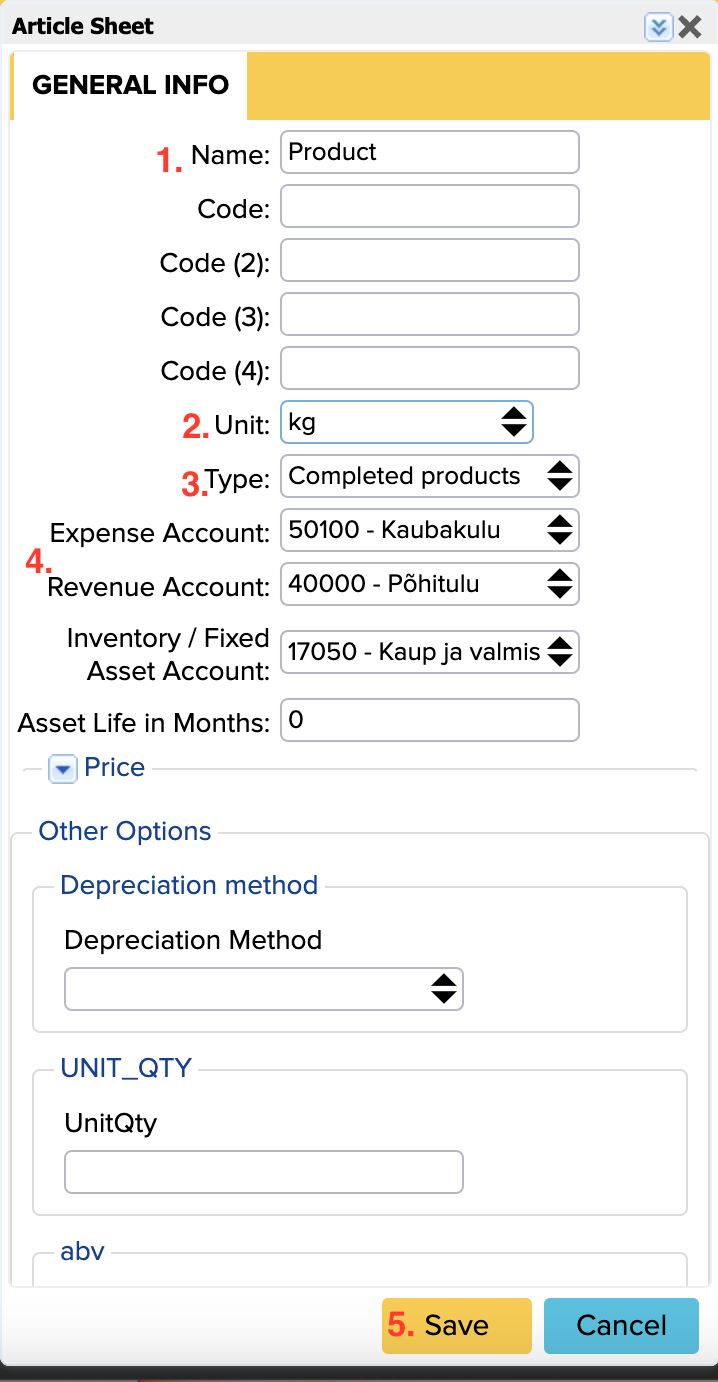
Note: For finished products, include in the name all information that needs to appear on the invoice, except for the batch number.
Once done, click “Save”. A new row will be created.
Next, add information about the product. Which column to fill in and with what data is explained in the next section.
Columns in “Purchase-Sales Articles”
In this module, you can customize the columns displayed – removing those you do not want to see. This is useful for focusing only on essential information and making the workspace clearer and more efficient to use.
As shown in the picture below, you can manage the column settings:

If you remove the checkbox in front of a column’s heading, that column will be hidden from view but the data will still remain in the system.
As an example, here are important columns in the “Purchase-Sales Articles” module for an alcohol manufacturing company:
- Name
- Code – basis for batch tracking (not printed on the invoice)
- Product Group – see section “Assigning Product Groups”
- Code (3) – e.g. alcohol register code
- Code (4) – e.g. European Article Number (barcode)
- Product Type – type of the finished product
- Batch
- Best Before – expiration date (not required for alcohol)
- Unit – correct unit for the product, e.g. “bottle” for finished products
- Base Price – price excluding VAT
In the default setup, invoices include “Code (4)”, “Code (3)”, “Name”, “Batch” and “Best Before” (if applicable).
Some fields are mandatory (e.g. name, type), but others (e.g. “Best Before”) are not. If you leave some fields blank, it may affect the accuracy of production, stock, or reporting. Most data can be edited later, but it’s recommended to fill in all important fields immediately.
You can read about the meanings of all columns here.
If you want to change/add anything related to the columns, you can do so via “Additional Attributes for Modules”. Read more here.
More information about warehouse products can be found here:
https://www.youtube.com/watch?v=i8OKN8jg62E