
Special formats for importing invoices
Default importing options are described here in the video. The guide for importing standard invoices can be found here.
This tutorial speaks about how to import invoices with custom fields and XLS files.
Default CSV file alignment
| Column | Field name | Compulsory | Default value | How it is used? | Column name |
| A | Invoice no | Yes | – | If you have two or more lines with the same invoice number it will combine them together and create one invoice from that. Meaning one line is meant for one invoice line | number |
| B | Customer Name | Yes | – | If customer ID is not available then searches contacts with this name. If missing then creates new customer/supplier | customerName |
| C | Customer ID | No | – | This is Books contact ID | customerId |
| D | Description | Yes | – | Invoice row description | description |
| E | Datetime | Yes | – | date | |
| F | Deadline Date | Yes | – | deadline | |
| G | Subtotal | Yes/No | – | If blank then calculated from Total and Tax Sum | price |
| H | Total | Yes/No | – | If blank then calculated from Subtotal and Tax Sum | total |
| I | Tax Sum | Yes/No | – | If blank then calculated from Subtotal and Total | taxSum |
| J | Tax Rate Name | No | – | If blank then takes the first tax where percent matches from total and subtotal | taxName |
| K | Rounded sum | No | 0 | rounding | |
| L | Link | No | – | link | |
| M | Ref Number | No | – | referenceNumber | |
| N | Expense/Revenue Account Number | No | – | accountNumber | |
| O | project name | No | – | projects | |
| P | partnerDocId | No | – | partnerDocumentId | |
| Q | EAN | No | – | ean | |
| R | amount | No | 1 | This is quantity – necessary if you want to see quantity in Books. This field will not recalculate total values. Meaning if you want to use quantities it is wise to add tax rate name and subtotal and leave total and tax field empty | amount |
| S | currency | No | Company currency | currencyCode | |
| T | currencyRate | No | 1 | currencyRate |
Additional options with invoice import
You have the following options:
- If you don’t want to separate projects with project names and instead want to use projects separated by project groups then you can add project group columns
- If you want to use project groups then add them into separate columns after currencyRate – leave one empty column after currency rate and then every project group into separate column
- Into the header of project group column add project group id. Id values you can get from report generator
- You can change the format of the columns
- If you want to use your own alignment not the default one then add Global parameter: GLOBAL_USE_INVOICE_IMPORT_ORDERING
- With that global in invoice import you have ordering field where you can add your own ordering alignment. It should have previously described column names separated by “|”, “,” or “;” and entered in the Value column
- Example of the alignment: projects|partnerDocumentId|actualAddress|customerName|registrationCode|other|other|customerNameIfNotBlank|registrationCodeIfNotBlank|legalAddress|contactPersonName|contactPersonPhone|contactPersonEmail|actualAddress|date|referringIdentifier|other|other|partnerArticleId|amount|unit|paymentAccount=11001|paymentAccount=11021|other|other|other|total|other|other|other|taxName|other|other|number|other|other|info|other|printedInfo|description
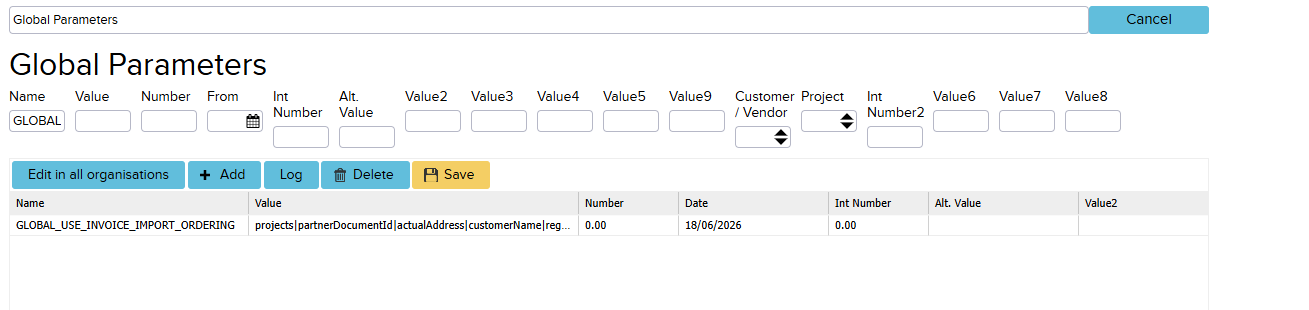
- Users can map CSV column headers directly to system values when importing invoices. This means that if the CSV structure changes in the future, the import will continue to work because the system identifies the columns by their headers.
- To enable this, add the GLOBAL_INVOICE_IMPORT_LET_SYSTEM_DO_MAPPING global attribute. In the Value field, enter the mapping rule using the format column header=value, with each mapping separated by the “|” character.
- Asukoht=projects|Tehingu ID=number|Kliendi nimi=customerName|Kliendi isikukood=customerId|Arve edastatud e-postile=contactPersonEmail|Registrikood=registrationCode|Juriidilise isiku aadress=legalAddress|Kontaktisiku nimi=contactPersonName|Ohtlike jäätmete kontaktisiku telefon=contactPersonPhone|Kontaktisiku email=contactPersonEmail|Jäätmete tekkimise koht=other|Tehingu kp/kellaaeg=date|Auto number=other|Kategooria=other|Jäätmeliik=description|Jäätmeliigi kood=other|Kogus=amount|Tasutud kaardiga=other|Tasutud ülekandega=other|Tasutud saatelehega=other|Summa (€)=total|Summa korrigeerimine (kokku, €)=other|Summa tasumiseks (kokku, €)=other|Käibemaksuta (€)=price|Käibemaksu määr (%)=taxName|Käibemaks (€)=taxSum|Arve number=other
- It is also possible to configure the system to skip rows that are not required during the import.
- To do this, add the GLOBAL_INVOICE_IMPORT_SKIP_WHEN global attribute and enter the value to be skipped in the Value field (for example, “Cash Total”).
- The content of the Value field must exactly match the corresponding text on the invoice. If the values differ, the rule will not work. For example, if the Value field contains “Cash Total”, but the invoice contains “Cash”, the attribute will not be applied.
- You can add custom fields.
- If column alignment is not overridden then additional fields start from column U (the same as project groups).
- For example if you want to add customer registration code into column U then make sure U1=registrationCode.
- All the additional customer columns are described here:
- bankAccountNumber
- bankIban
- bankIdentifier
- bankName
- bankSwift
- code
- contactPersonEmail
- contactPersonName
- contactPersonPhone
- entityTypeCode
- fax
- info
- invoiceSendingAddress
- invoiceSendingIdentifier
- legalAddress
- legalCity
- legalCountryCode
- legalPostcode
- phone1
- phone2
- referenceNumber
- registrationCode
- supplierReferenceNumber
- vatNumber
- Website
- All other additional columns:
- paymentDate
- paymentSum
- paymentAccountNumber
- paymentAccountId
- paymentArchivingId
- parentDocumentNumber – requires GLOBAL_INVOICE_IMPORT_PARENT_TYPE
Special options for importing purchase/sales articles onto an invoice
GLOBAL_INVOICE_IMPORT_ARTICLE parameter
This attribute determines how articles (products) are identified and matched during invoice import from an external file (e.g., CSV) against articles already existing in the system. The attribute tells the system which field (e.g., code, name) should be used to search for an article or, if necessary, create a new one.
When adding the global attribute, you need to add:
- Name: GLOBAL_INVOICE_IMPORT_ARTICLE
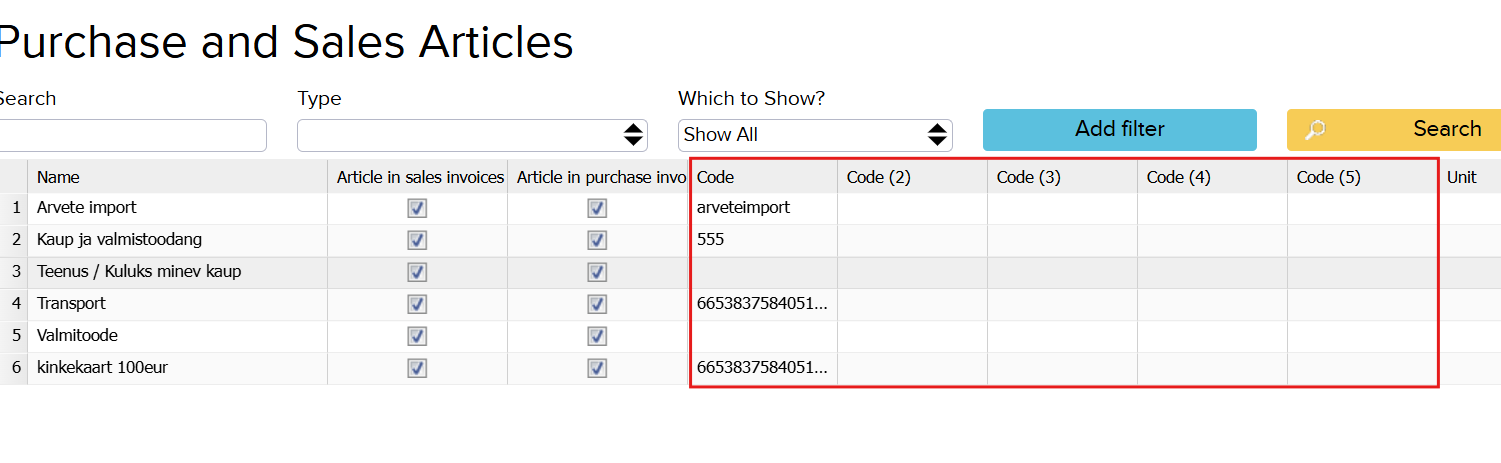
- Value (labeled “Value” in the interface): the field used to search for the article — this can be
code, but alsocode2,code3,code4, orcode5, depending on which code column (Code, Code (2), Code (3), Code (4), Code (5)) on the article card you want to use for matching.
Additional options:
- Automatic VAT application with code:
- Value:
codeWithTaxMapper - Alt. Value9: enter the mapping table here that specifies which code corresponds to which tax rate — in the format
CODE1=taxID1|CODE2=taxID2. This way, the correct VAT rate is automatically applied to each code, without having to select it manually for every row.
- Value:
- When an article is not found:
- Alt. Value:
true— the system displays an error message and the import stops until the issue is resolved - Alt. Value:
false(default) — the import continues, but the corresponding row is created without an article reference (i.e., as a row with no article)
- Alt. Value:
- Matching by two fields with approximate matching. This is a more advanced configuration intended for situations where one field (e.g., code) does not always produce a single, exact match. In this case, the system also searches by a second field and, if needed, allows for approximate similarity:
- Value: primary matching field (e.g.,
code) - (Alt. )Value2:
checkTwoFields— indicates that two-field matching logic is being used - (Alt. )Value3: secondary field used when multiple matches are found based on the primary field (e.g.,
name) - Int Number 2: indicates which column in the imported file contains the secondary field (e.g., name)
- Int Number: sets how much character difference (Levenshtein distance) is allowed for two names to be considered similar enough to count as a match (e.g., to account for spelling variations)
- Value: primary matching field (e.g.,
GLOBAL_INVOICE_IMPORT_ARTICLE_QTY_EXCEPTION parameter
This function allows the quantity of a purchase or sales article in the imported file to be multiplied by a user-defined multiplier, while the row’s total amount remains unchanged. This is needed, for example, to correct the quantity of a specific item by a set factor. Example: if the imported file states a product quantity of 8 pcs with a row total of €100, then by setting the multiplier to 10, ERPLY Books will import the product quantity as 80, while the row total remains €100. In other words, 8 is multiplied by 10, and the quantity is replaced with 80.
You need to add a global parameter:
- Name: GLOBAL_INVOICE_IMPORT_ARTICLE_QTY_EXCEPTION
- Value: the purchase/sales article ID (look it up in the report generator)
- Number: the multiplier
- Alt. Value: IMPORT