
New Data and Conditions
If new data, new groups, etc. are created, the settings must also be updated. Here are the main changes:
1. A new bank is created and a new payment method needs to be added
- Add a new accounting account.
- Then go to ERPLY and open “Settings” > “All settings” > “Invoice settings” > “Payment types”. Add the new payment method there and save. The name must be in English (NAME ENG).
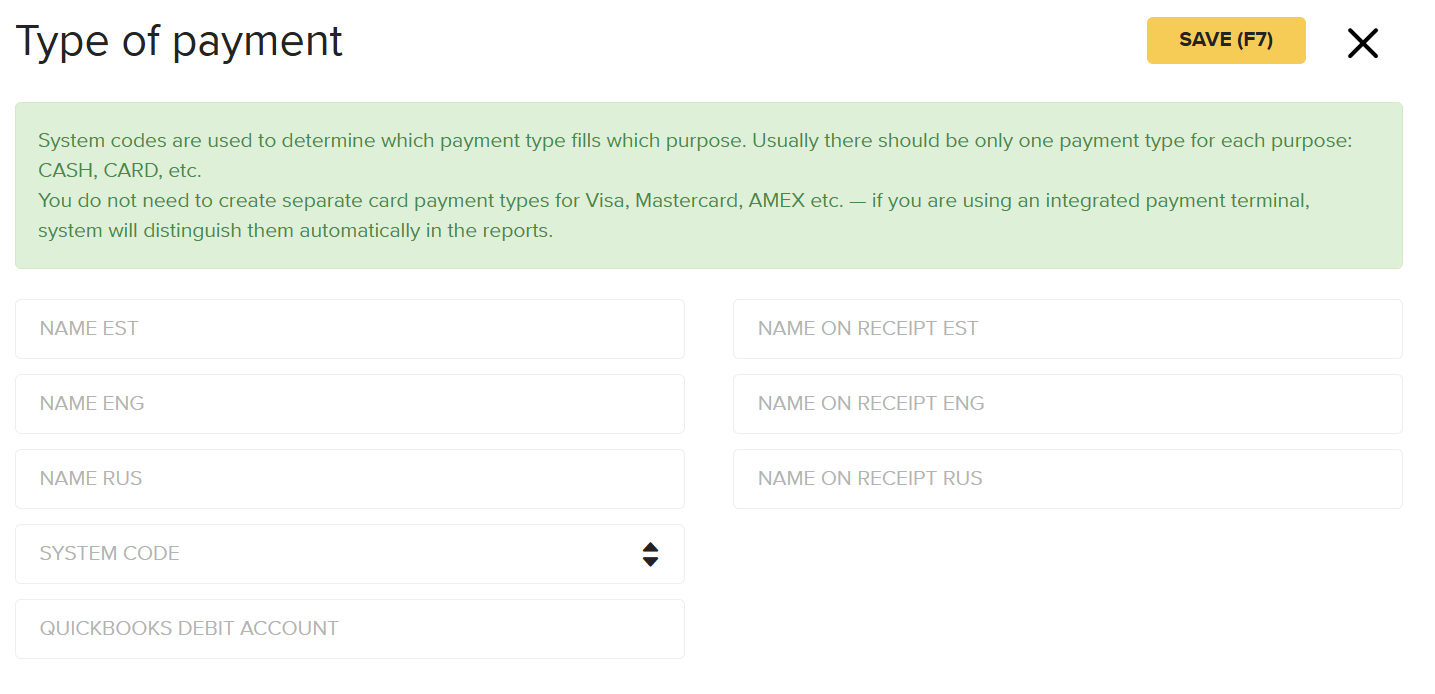
- Then go to ERPLY Books and open Settings → ERPLY POS & Inventory Settings → Account mapping. If you have added the new payment method in ERPLY, it will automatically appear here when the connection is active. Now connect the account with the newly created payment method by selecting the correct accounting account. Then save.

2. A new non-stock product/service is created that needs to be connected to a revenue and/or expense account:
- Open Settings → ERPLY POS & Inventory Settings → Sync Services and Tax Rates → Synchronize (Purchase and Sales Articles) in ERPLY Books.
- Then open “Sales” > “Purchase and Sales Articles”, find the product, and assign the desired accounts to it.
3. A new product group is created that needs to be connected to different accounts
- Open Settings → ERPLY POS & Inventory Settings → Account mapping.
- Find the new product group there and add the desired accounts.
4. A new warehouse is created that needs to be connected to different accounts
- Open Settings → ERPLY POS & Inventory Settings → Synchronize Warehouses as Projects.
- Kui Teil on mitu ladu ja soovite uuele laole määrata eraldi kontod, siis kirjutage pealehe otsingukasti “ühenda osakonnaspetsiifilised kontod projektidega” ja määrake kontod (vt peatükk Raamatupidamiskontode seadistamine > Osakonna kontod)
- If you have multiple warehouses and want to assign separate accounts to the new warehouse, type “Add Accounts for Location” into the dashboard search box and assign the accounts (see chapter Setting Up Accounting Accounts → Department Accounts).
Payment Method Based on Currency
If you want the payment method to be selected based on the currency, you can add a special rule under “Assign organisation parameters for ERPLY sync”:
1. Open “Assign organisation parameters for ERPLY sync” from the main page.
2. Add a new Attribute: PARAM_REPLACE_PAYMENT_TYPE
- Value: POS payment type ID
- Alt Value: currency (e.g. EUR, SEK)
- Alt Value2: enter the POS payment type ID here
- Alt Value3: description
- Alt Value4: if “true”, it will be replaced with the primary currency
3. Save, then log out of the account and log back in.