
User Settings
On the “User Settings” page, you can change your contact details, ERPLY Books interface language, security settings, and user-specific preferences. You can also change your account password on this page.
To open the page, select “Settings” → “User Settings” from the main menu.
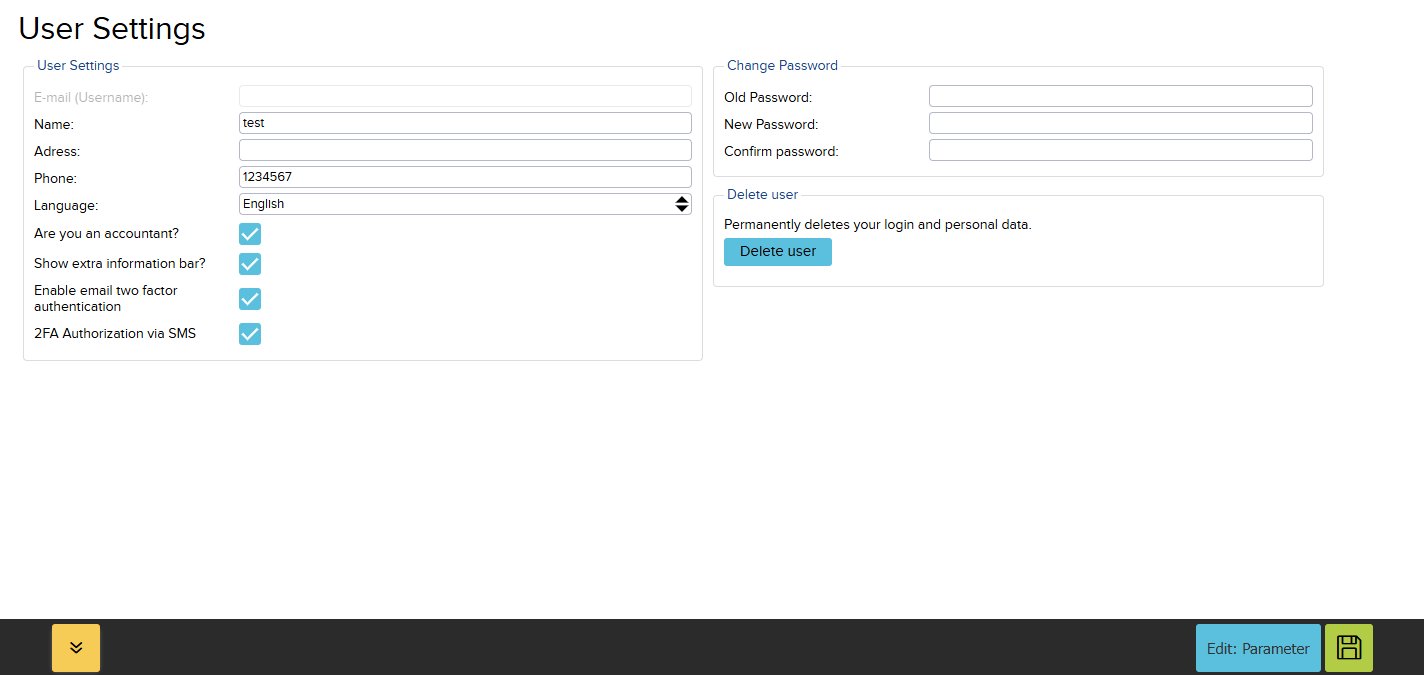
- Email (username): Displays the email address associated with the user account and used to log in to ERPLY Books. The username cannot be changed on this page.
- Name: Enter the user’s name. The name may be used to identify the user in different ERPLY Books processes, such as user management and invoice approval.
- Address: Enter the user’s address. If the address is not needed in ERPLY Books, the field can be left empty.
- Phone: Enter the user’s phone number. A phone number is required if you want to use two-factor authentication via SMS. Make sure to include the country code.
- Language: Select the language in which you want to use ERPLY Books. When the language is changed, the software’s menus, fields, and feature names will be displayed in the selected language.
- Delete user: By clicking this button, you will permanently delete your user account.
User-related options
- Are you an accountant?
Enable this option if you use ERPLY Books as an accountant. This helps identify users with an accountant role and is primarily intended for users who manage the accounting of one or more companies.
ERPLY Books allows accountants to manage multiple organisations through a single user account and use the cross-organisational Partner Panel. Read more about the features available to accountants.
- Show extra information bar?
When this option is enabled, user-related additional information can be displayed on invoices. The information displayed may depend on the invoice template and its configuration.
The invoice design and the information displayed on invoices can be changed using invoice templates.
Two-factor authentication
Two-factor authentication, or 2FA, adds an additional layer of security to the user account. After logging in with a password, the user must verify their identity using a second authentication method. This helps protect the account even if someone obtains the user’s password.
- Enable email two factor authentication
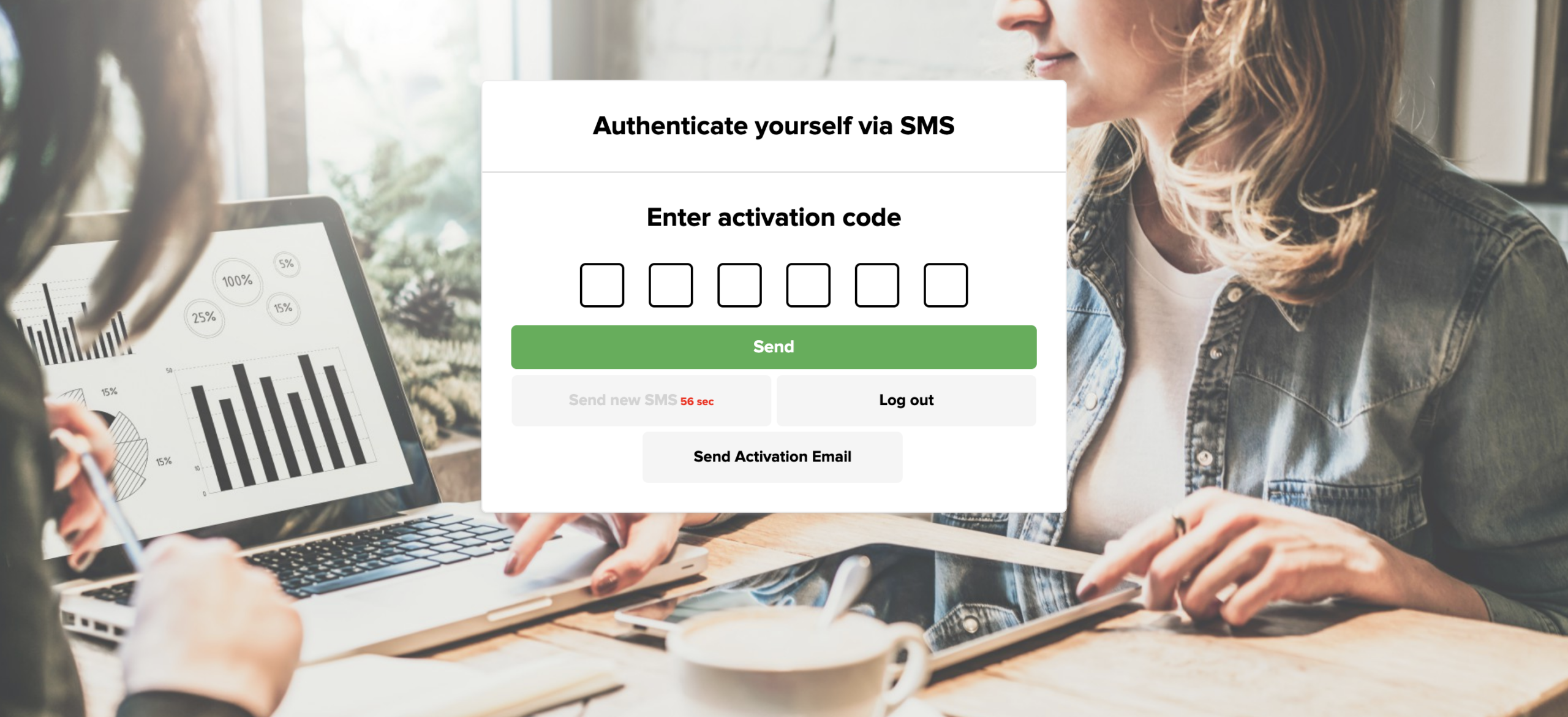
When this option is enabled, a login verification code is sent to the email address associated with the user account. To log in to ERPLY Books, enter the code received by email.
Before enabling this feature, make sure that the email address associated with the user account is correct and that you have access to it.
- 2FA authorization via SMS
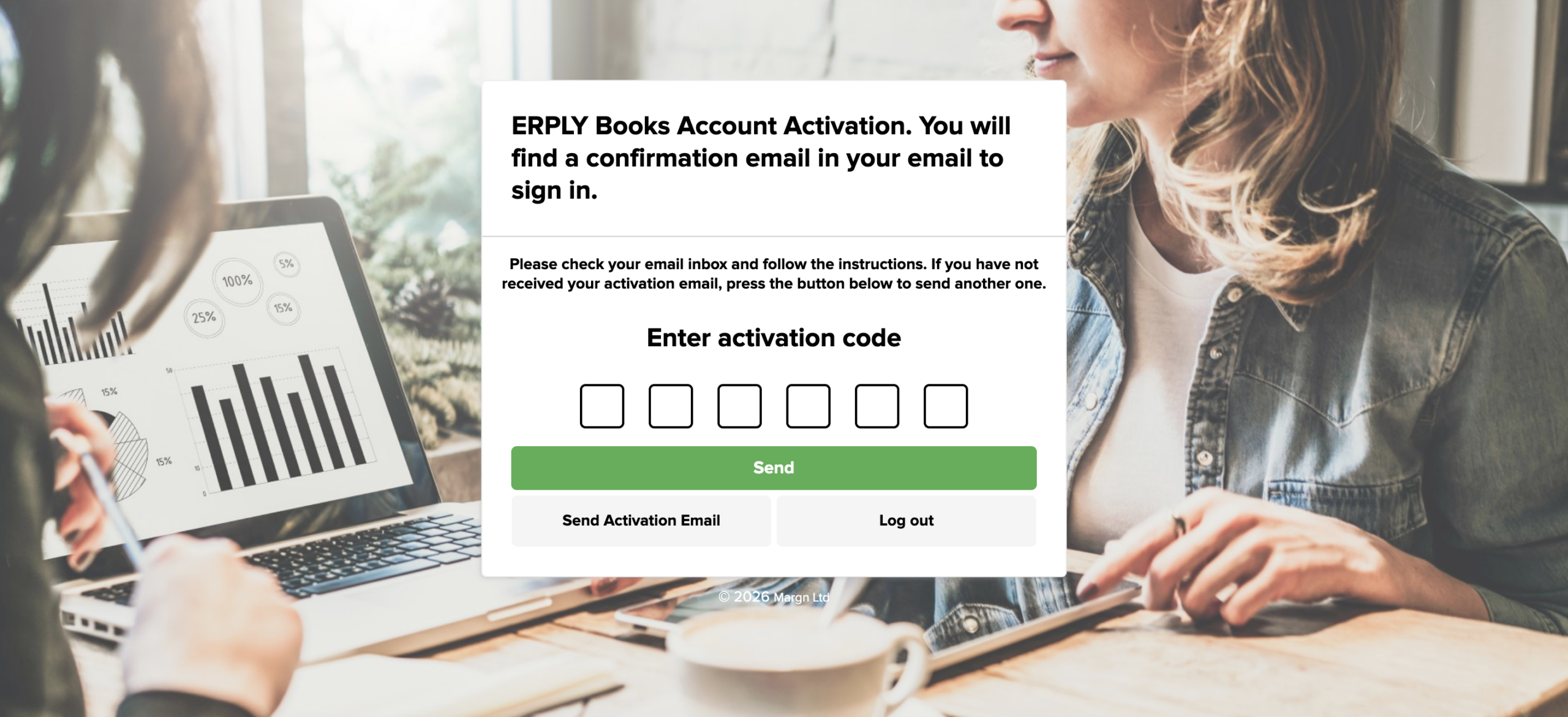
When this option is enabled, a login verification code is sent by SMS to the user’s phone number. To log in to ERPLY Books, enter the code received by SMS.
Before enabling this feature:
- Enter the correct phone number in the “Phone” field.
- Enable the “2FA authorization via SMS” option.
- Save the changes.
Changing the password
Users can change their password in the “Change Password” section on the right side of the page.
- Enter your current password in the “Old Password” field.
- Enter your new password in the “New Password” field.
- Enter the same password again in the “Repeat Password” field.
- Click the green save button in the bottom-right corner.
If you have forgotten your password and cannot log in to ERPLY Books, select “Forgot your password?” on the login page. Enter your email address and follow the password reset instructions sent to your email.
After changing your details or settings, click the green save icon in the bottom-right corner. If necessary, refresh the page after saving to apply the changes.
Deleting your account
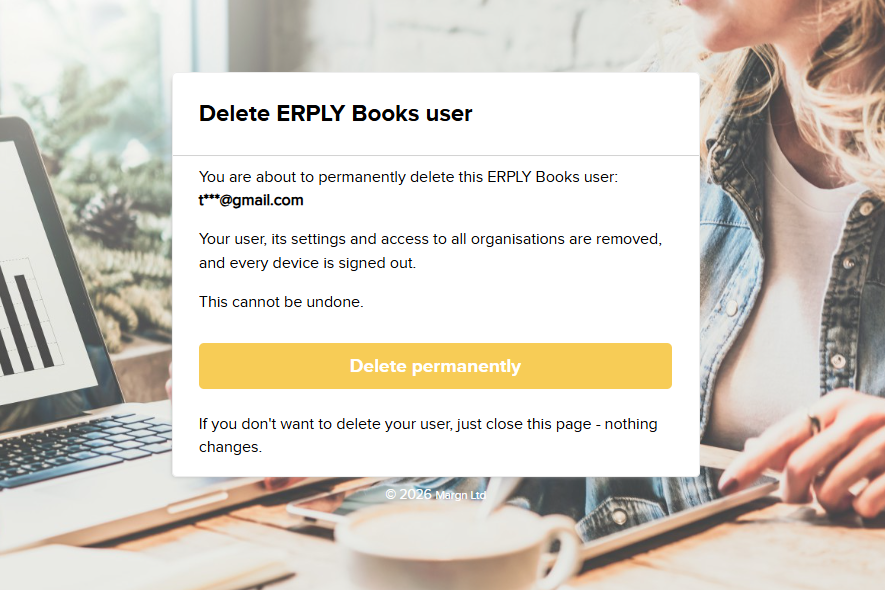
Deleting your account removes access to ERPLY Books, its mobile apps and all linked organisations.
1. Click “Delete user” and request the confirmation email.
2. Open the emailed link within 24 hours.
3. Click “Delete permanently” on the confirmation page.
Requesting the email or opening its link does not delete your account. After deletion, other devices lose access on their next request.
What is removed?
Your login and profile details, settings, integration credentials, API tokens, login IPs, unused password-reset links, imported mailbox emails and drafts are removed.
What is kept?
Organisation data and history remain subject to applicable legal requirements.
System metadata may remain where necessary for lawful security, auditing or dispute-resolution purposes.
Backups may contain removed data and remain subject to data-protection requirements.