
User Group Privilege Settings
User group privileges allow you to define more precisely which ERPLY Books features a user can access. They can be used to add additional restrictions to the user’s primary role.
This feature is generally intended for adding new users.
For example, a user can be assigned the “Viewer” role while user group privileges restrict their access to purchase invoice-related features only.
User group privileges work with roles that have restricted permissions, such as:
- Viewer
- Can record
- Small Business manager
- Debt collector
You can find more information about user roles here.
User group restrictions do not apply to the “Organisation admin” and “Organisation accountant” roles because users with these roles already have access to all features.
1. Creating a user group
Go to “Settings” → “Configuration” → “User Groups” and click “Manage”.

In the window that opens, you can view existing user groups and add new ones. To create a new group, click “+ Add”, enter the group name, and click “Save”. You can add multiple user groups at once.
The user group name can be chosen freely. We recommend using a name that describes the purpose of the group or the tasks performed by its users, for example:
- Approval
- Purchase Invoice Users
- Invoice Entry
- View Only
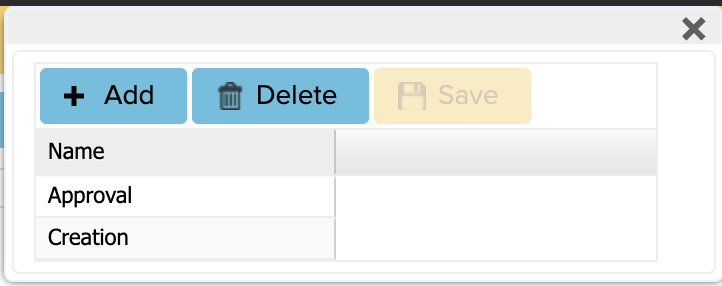
You can create as many user groups as your company needs. For example, you can create separate groups for different tasks or departments.
2. Assigning user group privileges
After creating a user group, you must specify which features the users in that group can access.
Search for the “User Group Privileges” module from the ERPLY Books home page.
Select the user group you created and specify which features and modules its users are allowed to use. Different privileges can be assigned to each user group.
For example, you can configure the user’s permissions so that they:
- can access purchase invoices only;
- can view documents but cannot modify them.
The user’s actual permissions depend on both their primary role and the privileges assigned to their user group.
When adding a privilege, specify the following information:
- User Groups – select the user group whose privileges you want to configure.
- Privileges – select the feature or action to which you want to give the group access. For example, the privilege may relate to purchase invoice digitisation or another ERPLY Books feature. All the privileges must be added on seperate row.
- Has access? – specify whether the selected user group has access to the feature. Select “Yes” to allow access or “No” to deny it.
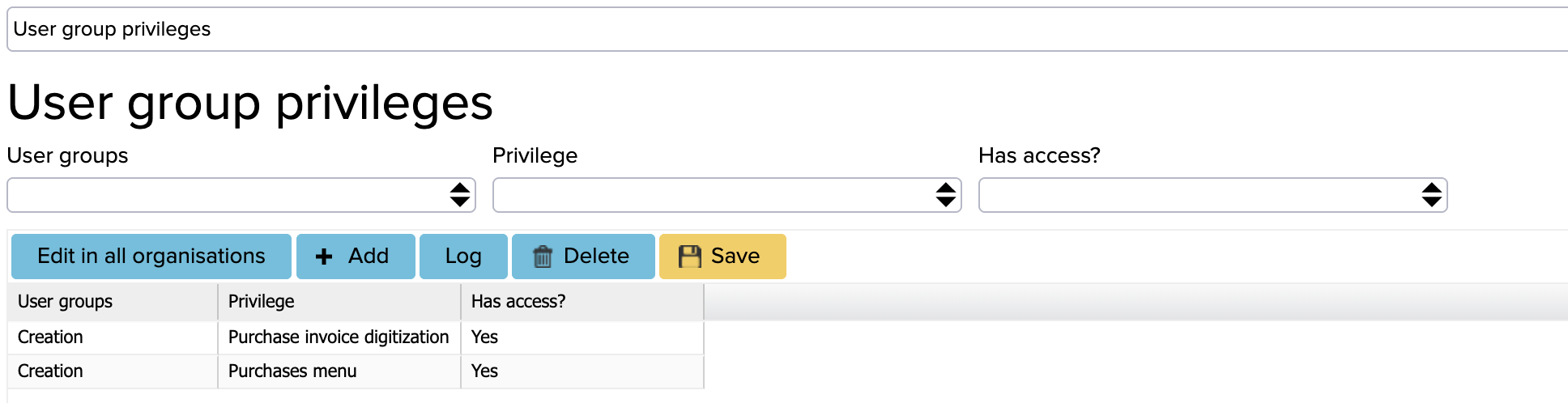
Once all the necessary privileges have been added, click “Save”.
3. Adding a user to a group
To add a new user, go to “Settings” → “Users” → “Add User”.
If you want to assign a user group to an existing user, you must first remove the user from the organisation’s user list and then add them again.
Complete the required fields in the window that opens:
- Email – enter the email address of the user you want to add.
- Copy user privileges from existing user – if necessary, you can copy permissions from an existing user.
- Role in organisation – select the user’s primary role, such as “Viewer” or “Small Business manager”.
- Project – assign a project to the user if necessary.
- User Groups – select a user group previously created under General Settings, such as “Approval”.
Once all the required information has been entered, click “Save”. The user will receive a confirmation email. They can then log in to ERPLY Books using their existing account.

How do the primary role and user group work together?
The primary role assigned to a user provides their general permissions. The user group allows these permissions to be specified and restricted according to the user’s responsibilities.
For example, the user’s settings could be as follows:
Primary role: Viewer
User group: Purchase Invoice Users
Result: The user can only access the purchase invoice-related features assigned to their user group.
It is important to remember that a user group does not replace the user’s primary role. The user must be assigned both an appropriate role and the required user group. The user’s actual access depends on the combination of these two settings.