
Recycling (article to article)
Recycling is an activity that takes place in waste management systems everywhere, as well as in recycling plants for paper, glass, textiles, wood etc.
In ERPLY Books, it is also possible to recycle goods, i.e. to convert one product into several or the other way around. In ERPLY Books, you work on a quantity-by-quantity basis when reprocessing, ensuring that nothing is lost. However, in real life, losses can occur.
The Recycling module
To open this module, go to “Inventory” -> “Inventory functions” -> “Recycling”.
A window opens where you need to select:
- Ladu (warehouse): where you want to make the change (Projects and Project groups must have been added beforehand). The warehouse (inventory) name must be the name of the city (e.g.Tartu).
- N->1 or 1->N
- N->1 means that multiple products are combined into one product, i.e. mixed together.
- 1->N means that one product is split into multiple products, i.e. several products are sorted out from one.
- Article: which product you are recycling (articles must have been added beforehand). Article must be the name of the product (e.g. Iron).

The following examples will show you how recycling takes place in the waste management feature.
Making multiple products from one
Let’s assume that at the Tartu warehouse, some concrete and stone were sorted out from a pile of iron. There is 3.8 kg of iron, from which 1.8 kg of concrete and 2 kg of stone were sorted out
Open the recycling module.

For this example, select Tartu as the warehouse, 1->N and Iron as the article.
Once all fields are selected, click “Done“. An empty window opens where you need to add:
- Vendor: your company name should appear here; if it does not, add it manually
- Article: what it is being processed into – there can also be multiple items. To add more, click “+ Add row“.
- Unit: Quantity: how much has been processed
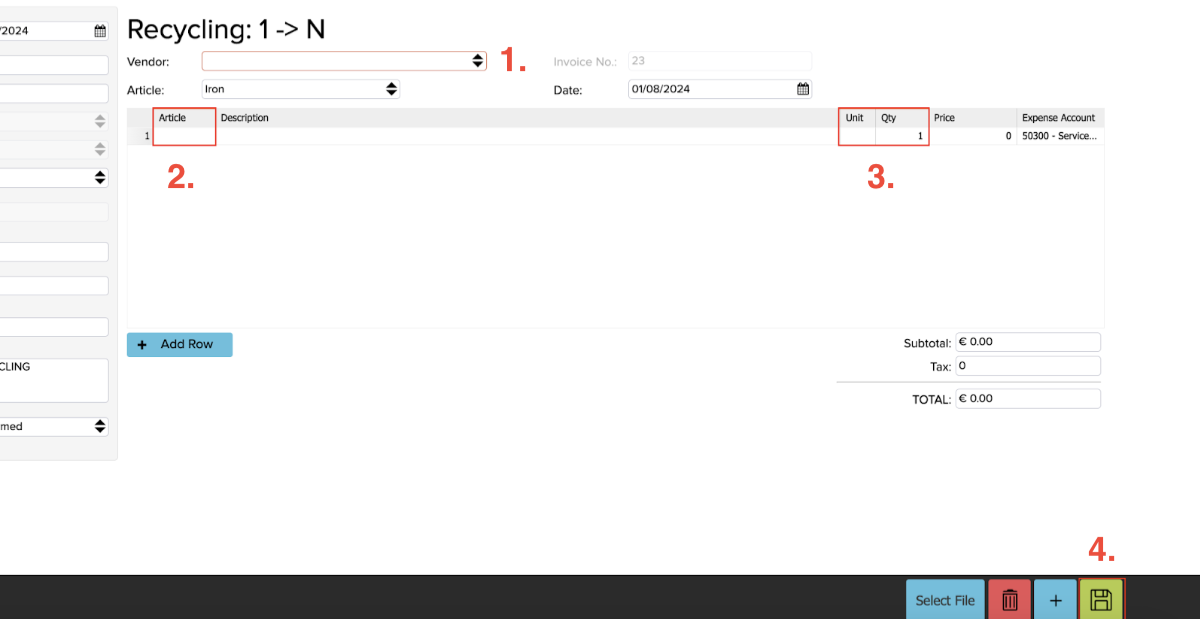
Once everything is added, click “Save” (green button) and a confirmation window will open.

In the small window, you can see the amount and quantity being processed. The system calculates the resulting prices automatically, based on the total cost of the input material (weighted average). When you click “Confirm” (Kinnita), one more row is added.
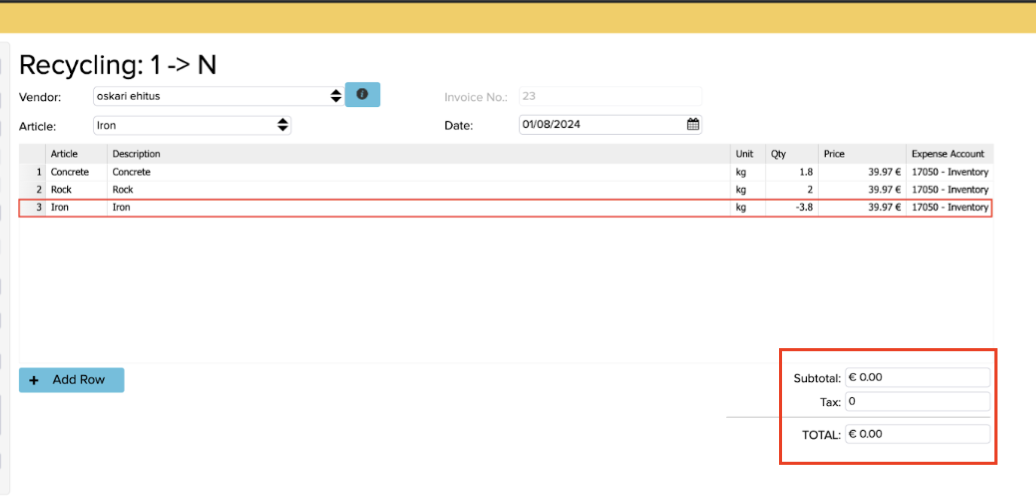
The last row shows what was reprocessed, which is why the quantity is negative. The subtotal is zero because the same quantity is still in the warehouse.
NB! If you need to update, for example, the location during reprocessing, you must reopen the module, which means you will also need to reopen the corresponding document: “Inventory” -> “Inventory functions” -> “Recycling” and start over from the beginning.
The process does not affect sales invoices; it is intended only for reprocessing articles within the warehouse
Making one product from multiple
Let’s assume that at the Tartu warehouse, iron was sorted out from a pile of concrete and stone. A total of 2 kg of iron was sorted: 1.8 kg came from the concrete pile and 0.2 kg from the stone pile.
Open the recycling module:

For this example, select Tartu as the warehouse, N->1 and Iron as the article.
Once all fields are selected, click “Done”. An empty window opens where you need to add:
- Vendor: your company name should appear here; if it does not, add it manually
- Article: what is being processed
- Unit: kg; Quantity: how much has been processed

Once everything has been added, click “Save” (green button) and a confirmation window will open.

In the small window, you can see the amount and quantity being processed. When you click “Confirm“, one more row is added.

The last row shows what was reprocessed, i.e., what you selected as the item. The quantities of concrete (betoon) and stone (kivi) are negative because these amounts need to be written off from the warehouse. The subtotal is zero because the stock quantity in the warehouse did not change
NB! The TOTAL must always remain 0. If it does not, redo the recycling and delete the old one. Also, if you want to change something, start completely from scratch and do not modify the old entry.
Viewing Inventory recyclings
All recycling records can be viewed under “Inventory” -> “Inventory reports” -> “Inventory recyclings”.
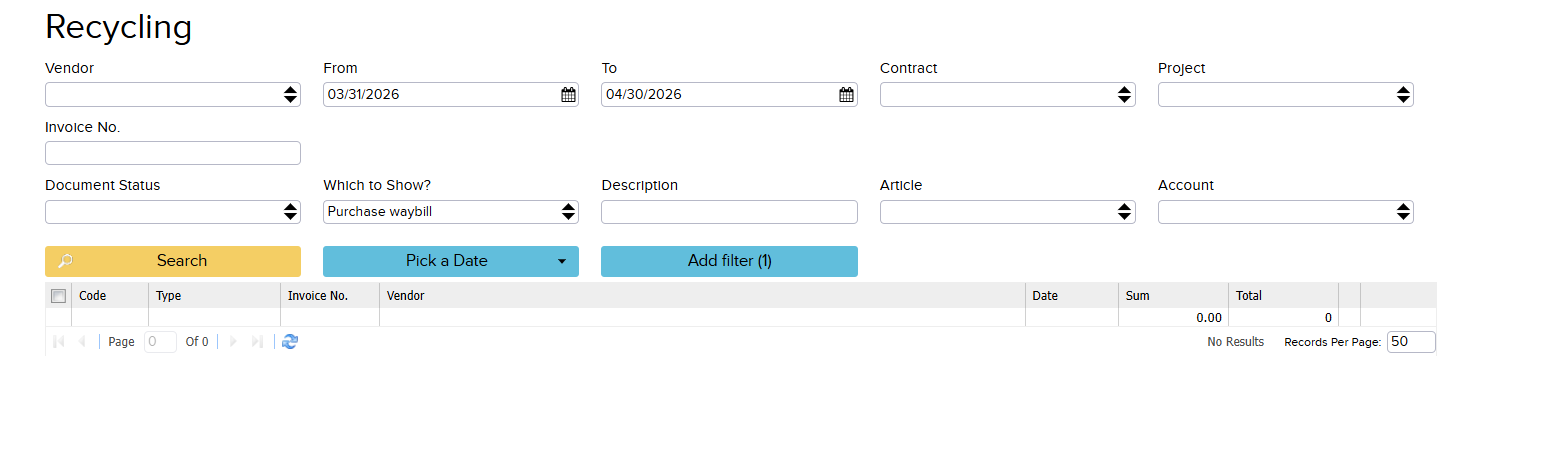
If you want to change something, create a new recycling entry and delete the old one.