
Incoming Webhooks
Webhooks are automatic alerts that let different systems talk to each other when something happens. In this guide, we’ll focus on incoming Webhooks – the ones that ERPLY Inventory sends to your system. For example, when something happens in an external system (like adding an invoice), that system sends a webhook to notify your ERPLY Books immediately.
Setting Up Incoming Webhooks
- Go to Dashboard
- Search for Webhooks
- Add a new row

Configuring Your Webhooks
You’ll need to specify the following settings:
1. Table
Select which type of data you want to receive. Available options:
- invoice – All sales documents including:
- Sales invoices
- Orders
- Price offers
- Waybills
- Other sales documents
- prcinvoice (Purchase Invoice) – All purchase documents including:
- Purchase invoices
- Other purchase documents
- payments
- Customers (customers and suppliers must be recorded in a Table with the name “orgper”) –
Important: Only these four table types are supported. If you add any other table type, the system will return an error message.
2. Action
Choose which events to track:
- insert – New records added (default)
- update – Adding new records and modifying existing ones
3. 5min interval
Select Yes or NO:
- Yes – Process webhooks every 5 minutes in batches
- No – Updating will not work, only new records works
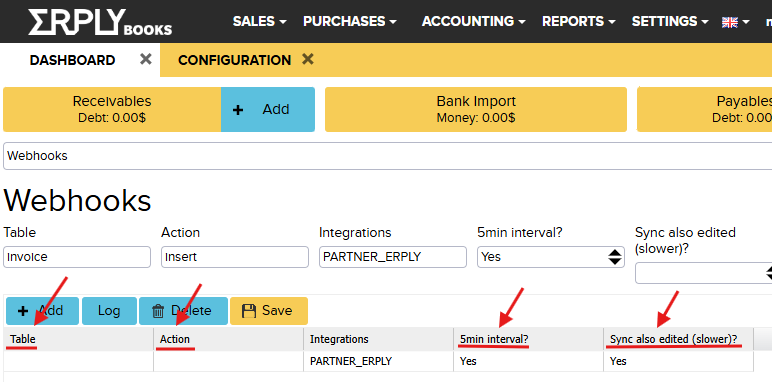
4. Synchronize Edited Items
Select: Yes or NO. This important option determines whether updated values are processed. When enabled, updates to existing records are applied as well, not just new ones. If you want to process updated invoices:
- Add update (in Action)
- Choose: Yes (in Sync also edited)
Without this setting, the system will only process new inserts and won’t recognize updates to existing invoices.

Integration with Automatic Synchronization
If you set up Webhooks with automatic synchronization (5min interval), you may no longer need frequent automatic synchronization schedules. This reduces system load while maintaining up-to-date data through Webhooks.
Adjusting Automatic Synchronization
- Go to Dashboard
- Search for Automatic ERPLY sync rules (Automatic Synchronization Rules)
- Review existing sync schedules
- Remove frequent sync intervals (if you have any)
- Keep one daily sync as a safety backup (optional)
