
Currencies in Bank Import
If transactions in multiple currencies occur on the same bank account, it is recommended to create separate accounts in ERPLY Books for each currency.
In this guide, we explain how currencies work in bank import.
Adding a Currency Account
Adding currency accounts is similar to adding a regular account. Accounts can be added in the Chart of Accounts (“Accounting” → “Chart of Accounts”).
When creating a currency account, you must select a currency different from your organisation’s base currency. In the example below, a USD account is created, and the fields can be filled in according to your needs.
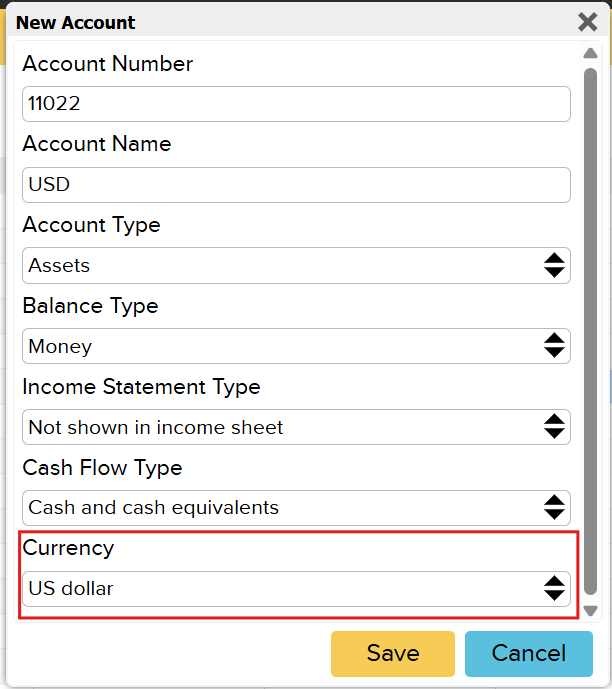
You can read more about this here.
Adding a Currency Column to Bank Import
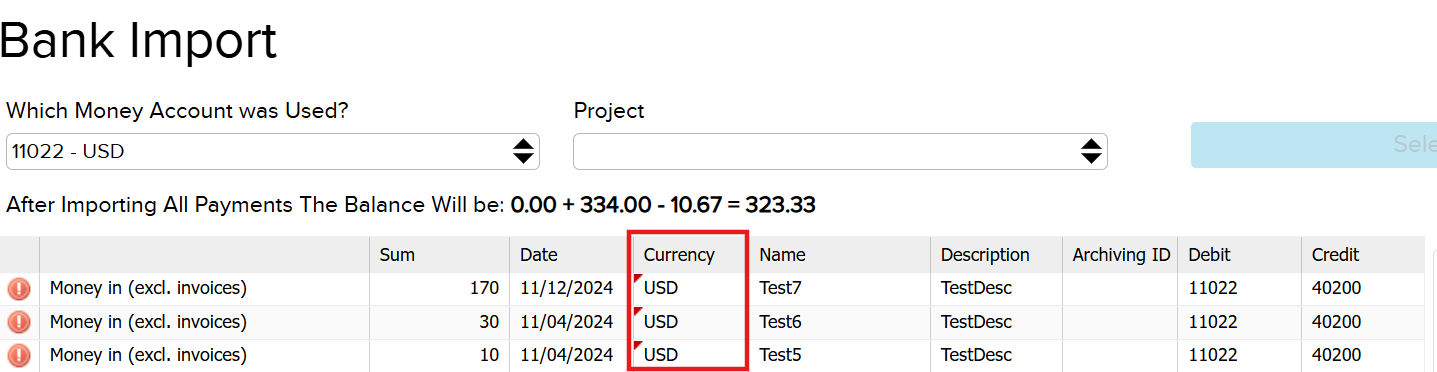
Under configuration (“Settings” -> “Configuration ”), it is possible to activate Rule No. 55, which displays a currency column in the bank import.

To activate it:
- Find the rule
- Tick the checkbox
- Save the changes
- Refresh the page
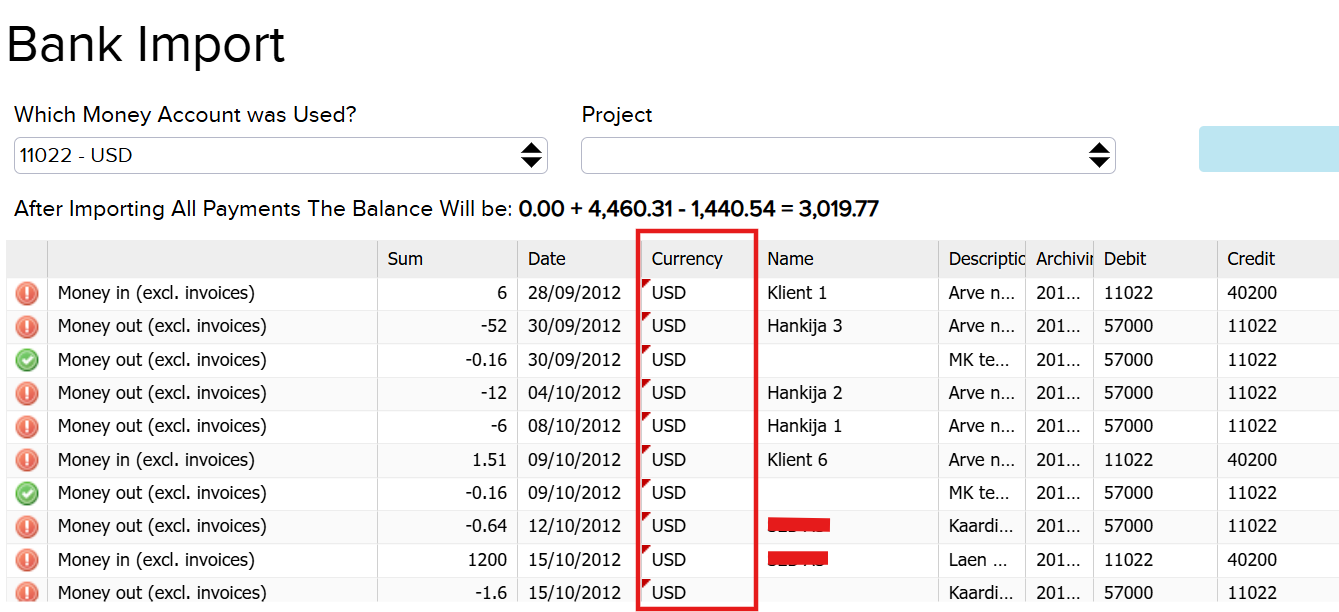
This is how the currency column appears in bank import:
Exchange Rate Calculation Based on Selected Money Account
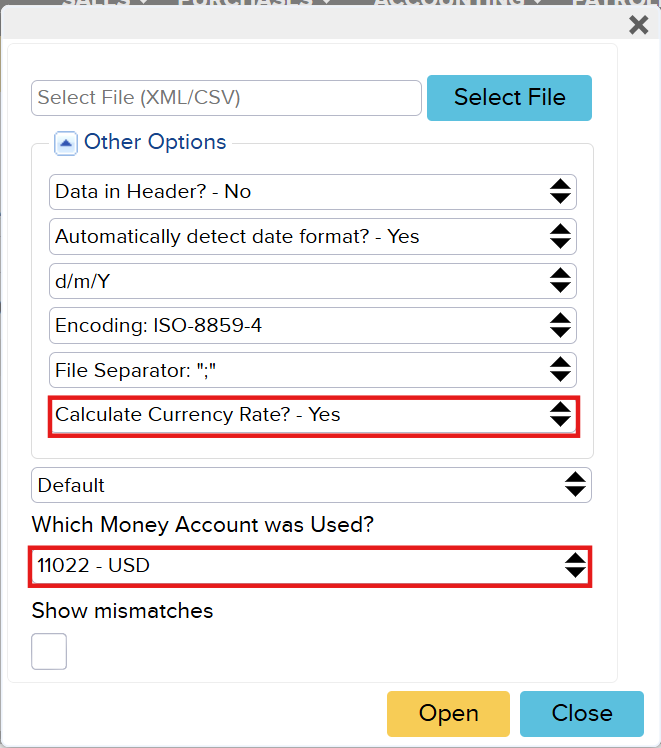
When uploading a bank statement into bank import, the default setting is: “Calculate Currency Rate? – Yes”
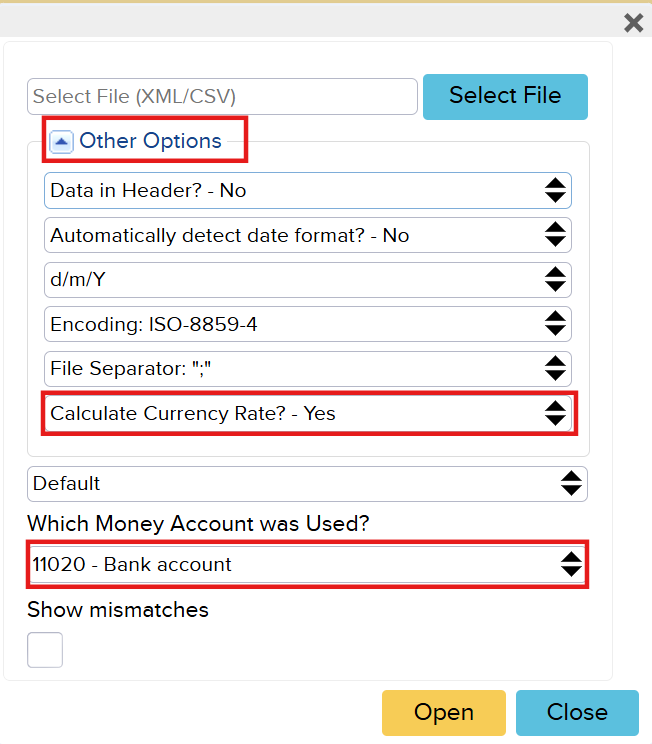
If you select a money account with a currency different from the organisation’s base currency, this setting automatically changes to: “Calculate Currency Rate? – No”
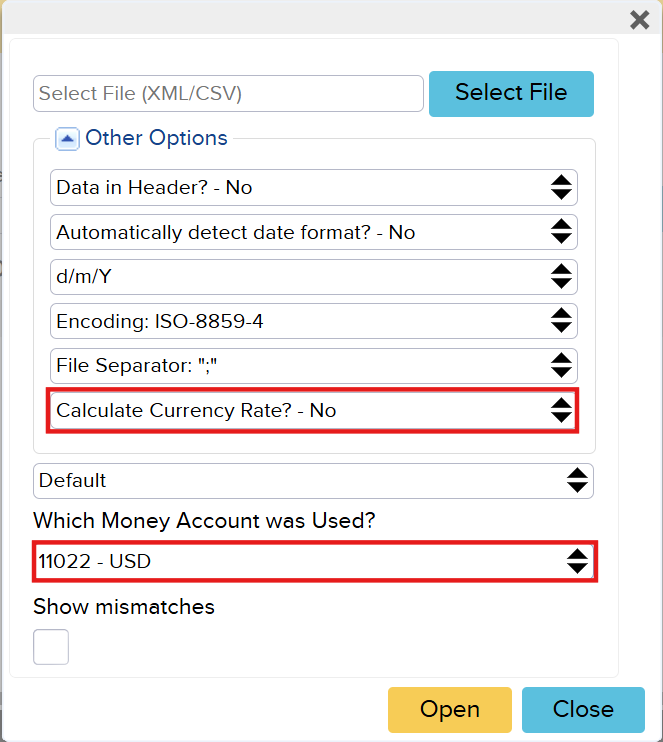
When you upload a bank import file:
- All transactions are displayed in the original (foreign) currency
- The system does not convert amounts into the local currency
However, if you change the account to a foreign currency account and switch “Calculate exchange rate? – No” → “Yes”, then:
- Transactions are still shown in the foreign currency
- BUT they are also converted into the local currency
For example: Instead of 1000 USD, you will see 854.53 EUR (depending on the exchange rate).
Bank Accounts with Multiple Currencies
This rule can be configured under configurations(“Settings” → “Configuration”). Find “Bank accounts that have multiple currencies” and click “Manage” to open the configuration module.

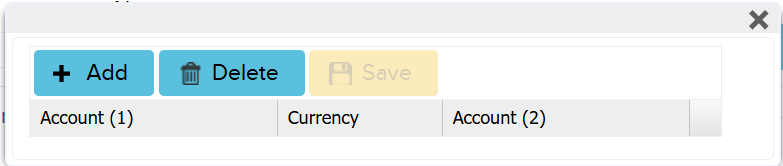
The empty module looks like this:
To add a rule, click “+ Add”.
- Account (1): the main bank account where transactions occur
- Currency
- Account (2): replaces one account with another
- If the currency is EUR, it remains the same account
- f.e. If Account (1) = 11020 and currency = USD, then replace it with Account (2) = 11022
You can configure rules according to your currencies. After adding, save the rule and to apply it, log out and log back in.
If you want to apply the same rule to multiple bank accounts:
- Add a new row
- Select another account in Account (1)
- Keep other fields the same
The rule looks like this:
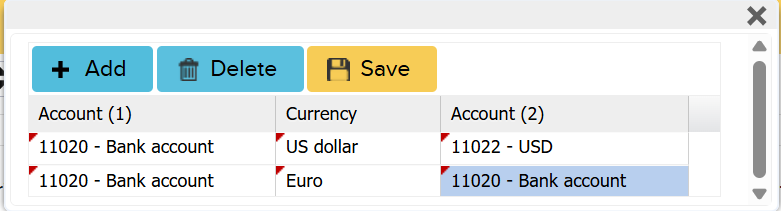
For example, if you define that one bank account is used for multiple currencies, you must also add a row where EUR is assigned to the same account selected under Account (1).
Applying the “Bank accounts that have multiple currencies” rule
Based on this rule in Configurations, you can apply it automatically during bank import. Open the bank import, upload the bank statement and select the correct bank and money account.
A window will then appear asking which account to use – for example, whether to use the USD or EUR account. After selecting the account, click “Select” (Vali) and the bank import will open.
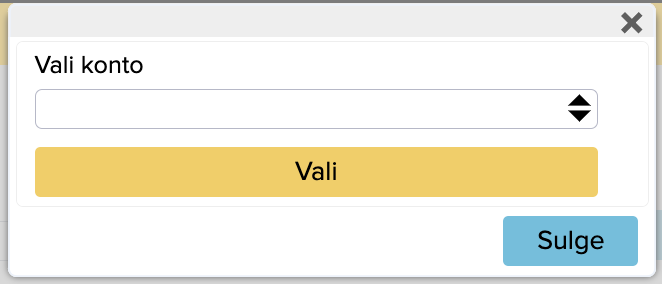
If you select, for example, a USD account – only transactions in USD will be displayed in the import
Currency Differences When Matching Payments to Invoices (+/- 5%)
If there is a difference of +/- 5% when matching a payment with an invoice, the system will by default suggest account: 55100 – Currency exchange losses
This occurs when the sales invoice is in a foreign currency and the payment is in local currency or vice versa.
- Upload the bank import file, select the transaction you want to use for payment, ning vajuta “Find Paid Invoice(s)”.

- Select the invoice and click “Link Payment to Invoice(s)”.
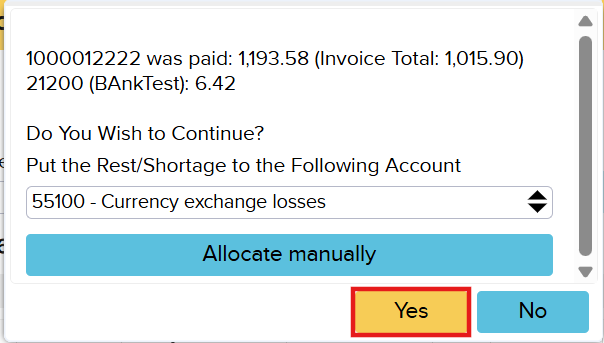
After that a window will open showing:
- That the invoice is paid
- Any remaining difference
The remaining amount is automatically proposed to be posted to: 55100 – Currency exchange losses
If you agree, click “Yes” and the invoice will be saved.
How to Edit Transactions with Currencies?
Transactions involving currencies can also be edited in bank import.
- OpenCash In (“Sales” -> “Cash In”) or Cash out (“Purchases” -> “Cash out”).
- Find and select the transaction you want to modify
- On olemas kaks võimalust, kuidas avada tehing pangaimpordis:
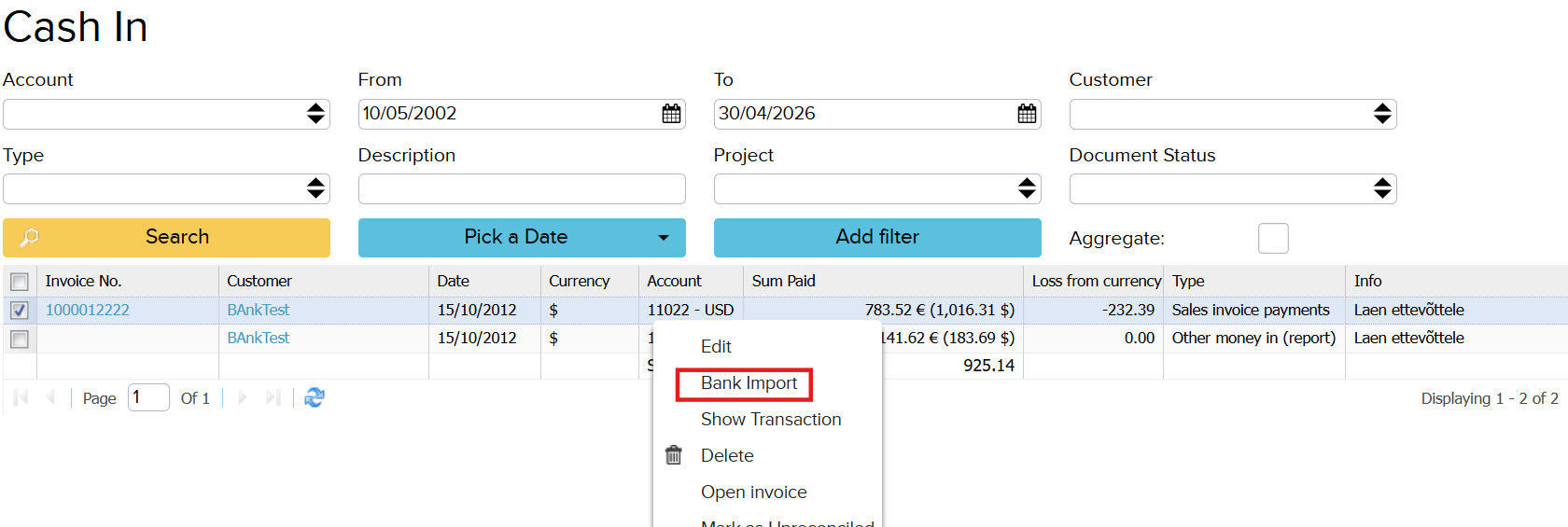
There are two ways to open it in bank import:
1) Right-click → select “Bank Import”
2) Click “More” → select “Bank Import”
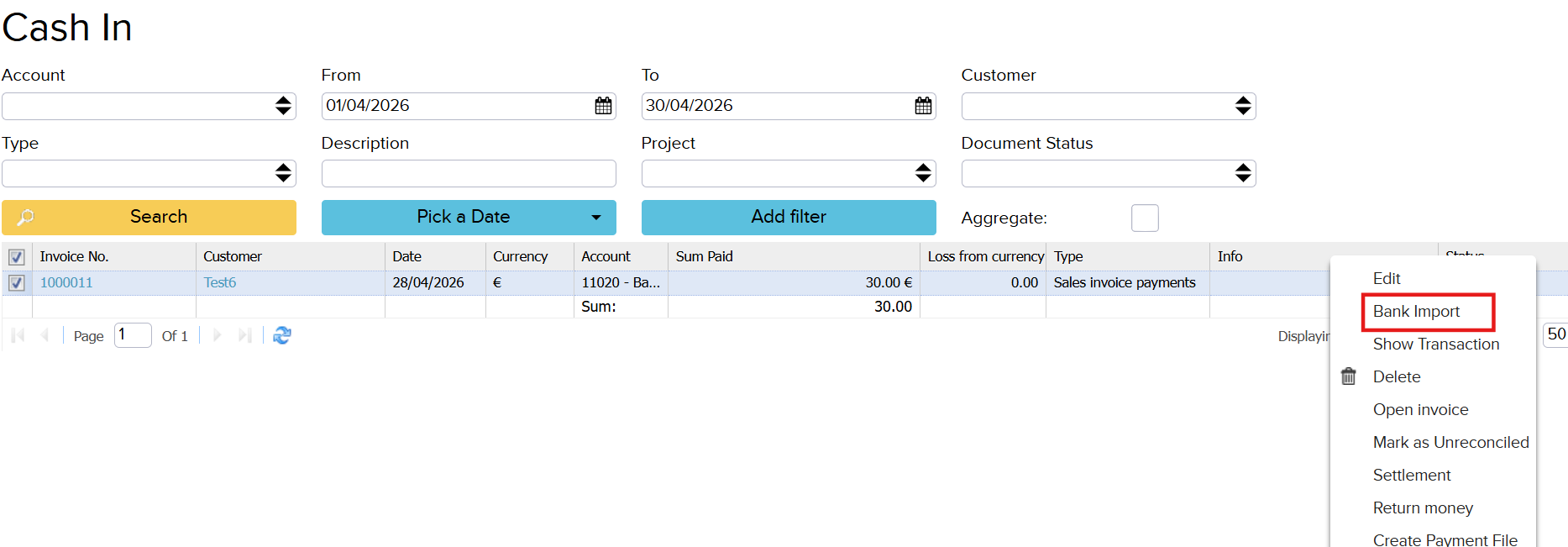
In both cases, the selected transaction will open in bank import, where you can edit it as usual.