
Setting Up Accounts
When you synchronise data from ERPLY to ERPLY Books, you need to assign accounts on which the transactions will be recorded in Books. Different accounts can be assigned to different transactions in Books. For example, you can define the accounts for cash receipts, bank receipts, credit card payments, etc. If needed, you can also assign accounts to product groups, customer groups and departments.
To assign accounts, open Settings → ERPLY POS & Inventory Settings in Books and click the “Add rules for accounts” button. A module will open where you can assign accounts to different transactions made in ERPLY, on which the synchronised data will be recorded in Books. You can also change the accounts here later if needed. However, keep in mind that changing accounts does not affect previously synchronised transactions — only transactions synchronised in the future.
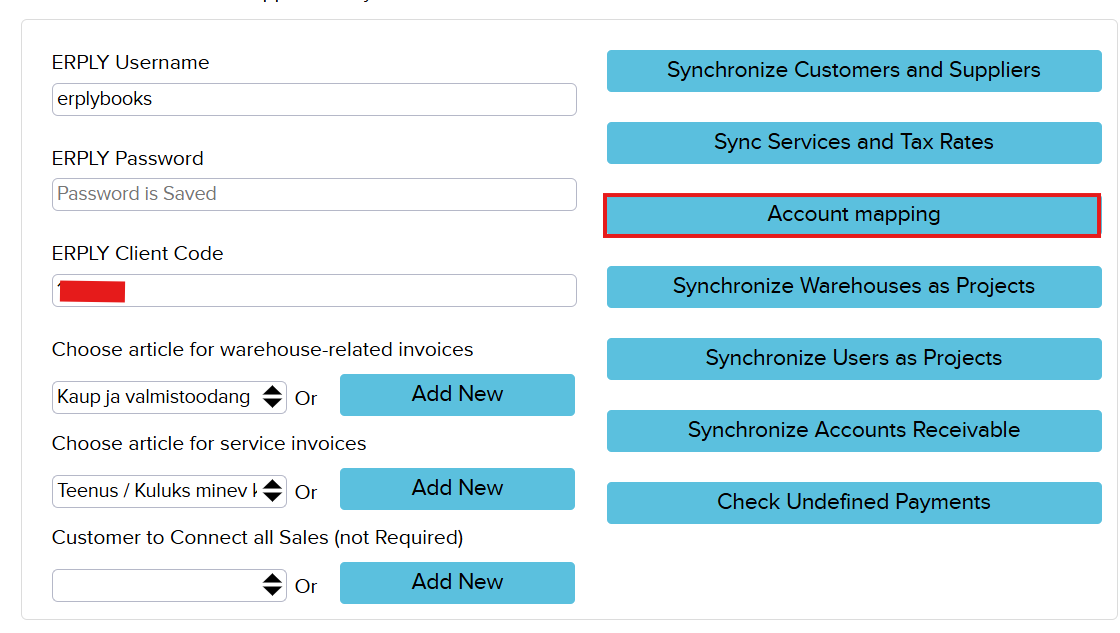
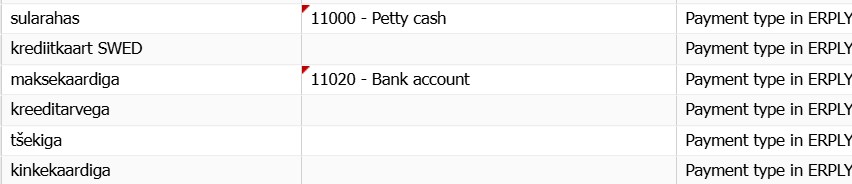
Payment Methods
If you have defined different payment methods in ERPLY, Books does not know which accounts to use for synchronisation and will automatically use the Bank account. By assigning payment accounts, you can bring the accounts into Books, and future synchronisation will take place on the correct accounts.
Excluded payments
If you want to exclude certain payment methods from synchronisation, you can select the corresponding accounts for them. The account is necessary so that ERPLY Books knows to exclude that payment method from synchronisation and can synchronise a receipt with that account to the inventory.
This condition is primarily needed when using prepayments, where ERPLY Books keeps both the created prepayment and the used prepayment, and sends only one receipt to ERPLY in order to keep the customer balance correct.

Product Group Accounts
Each product group can have separate accounts assigned on which transactions are recorded in Books. The following accounts can be assigned:
- Sales account
- Cost of goods sold (COGS) account
- Discount account
- Inventory account
- Cash revenue account
For example, if the product groups Footwear, Clothing, and Cosmetics have been assigned different sales revenue and COGS accounts: when a product belongs to the Footwear group, its sale is recorded in Books on account 40001 and cost of goods sold on account 50101. For Clothing, on accounts 40002 and 50102. For Cosmetics, on accounts 40003 and 50103.



If you also want to assign product group accounts to non-stock products, you need to activate setting 35. Connect non-stock items in product group account sync? (Settings – ERPLY POS & Inventory Settings – Other Options)
Write-Off Accounts
Different expense accounts can be assigned for write-offs. For example, you can assign separate accounts for writing off samples, discounts, defective products and inventory balances.

Customer Group revenue/expense account
Each customer group can have a default revenue account assigned. This means that when a new customer is synchronised, they are assigned a revenue account in Books according to their customer group. Find the correct customer group and assign the desired account on the “Customer Group (Revenue/Expense Account)” row.

Customer Group debt account
Each customer group can have a default receivables account assigned. This means that when a new customer is synchronised and you have assigned a receivables account here, they are assigned a receivables account in Books according to their customer group. Find the correct customer group and assign the desired account on the “Customer Group (debt account)” row.

Department Accounts
If you have multiple warehouses and want to distinguish transactions of different departments from each other, you can assign different accounts to them.
Type “Add Accounts for Location” into the dashboard search box. There you can select the type for which you want to assign accounts. After selecting the type, the system accounts module opens, where you can add new rows and select the account and project. Once the accounts and projects have been assigned for one type, you can do the same for another type. The available types are:
- Location COGS Account;
- Location Revenue Account;
- Location VAT/GST/Sales tax;
- Location Inventory Account;
- Location Payables Account
- Location Receivables Account;
- Cash Account for Location;
- Card Account for Location.
Once you have assigned the accounts, the department transactions will be recorded in Books on the accounts you have defined starting from the next synchronisation.
Non-Stock Product and Service Accounts
If you sell or purchase non-stock products or services, you can assign revenue and expense accounts to these articles. To do this, open Sales/Purchase → Purchase and Sales Articles. NB: If the article type is set to fixed asset, purchasing that article will register a fixed asset instead of creating an expense. For this rule to work, you must tick the checkbox “Set the correct Tax rate for synchronized invoices based on the document type?” , then save and refresh the page. Also, no higher rule in the hierarchy may override this rule.
Expense Account According to Revenue Account
If you want to assign a specific expense account to a specific revenue account, type “Expense Account According to Revenue Account” into the dashboard search box. When this is done, the cost of goods sold for a sales transaction with that revenue account will be recorded on the assigned account.