Payment links
The easier it is to pay, the faster you get paid.
With ERPLY Books payment links, customers can pay an invoice instantly with a single click—directly from the invoice, email, or payment reminder. There’s no need to manually enter the reference number, amount, or bank account details. Customers simply choose their preferred payment method and complete the payment in moments. Payment links work in PDF invoices, emails, and payment reminders.
This is especially valuable for small businesses. Many companies don’t have an online store or a dedicated payment solution because building and maintaining one can be expensive and time-consuming. Payment links provide the same convenient payment experience without the need for an e-commerce website—simply send an invoice and let your customers pay immediately.
ERPLY Books supports multiple payment service providers:
- Montonio – Bank payments across the Baltics.
- Stripe – Card payments and international payment processing.
- PayPal – Fast and familiar payments for customers worldwide.
- TarkPay – An Estonian payment solution supporting both bank payments and card payments, ideal for local businesses.
- Adyen – A global payment platform supporting card payments, digital wallets, and a wide range of local payment methods in more than 100 countries. Ideal for businesses operating internationally or planning to expand.
By making payments easier, you get paid faster and reduce the need to send payment reminders.
Customer experience:
- Customer receives an invoice with a payment link
- Clicks the payment link
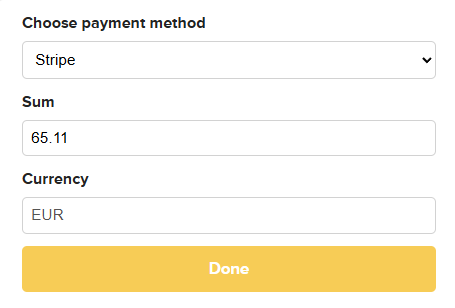
- Payment window opens showing:
- All configured payment methods
- Outstanding unpaid amount
- Option to select currency
- Customer selects payment method and amount
- Clicks Done
- Redirects to payment provider (e.g., Stripe) to complete the transaction
Supported Payment Providers
ERPLY Books supports:
1. Adyen and Stripe
- Set up directly in payment link settings (Open Settings → Configuration)

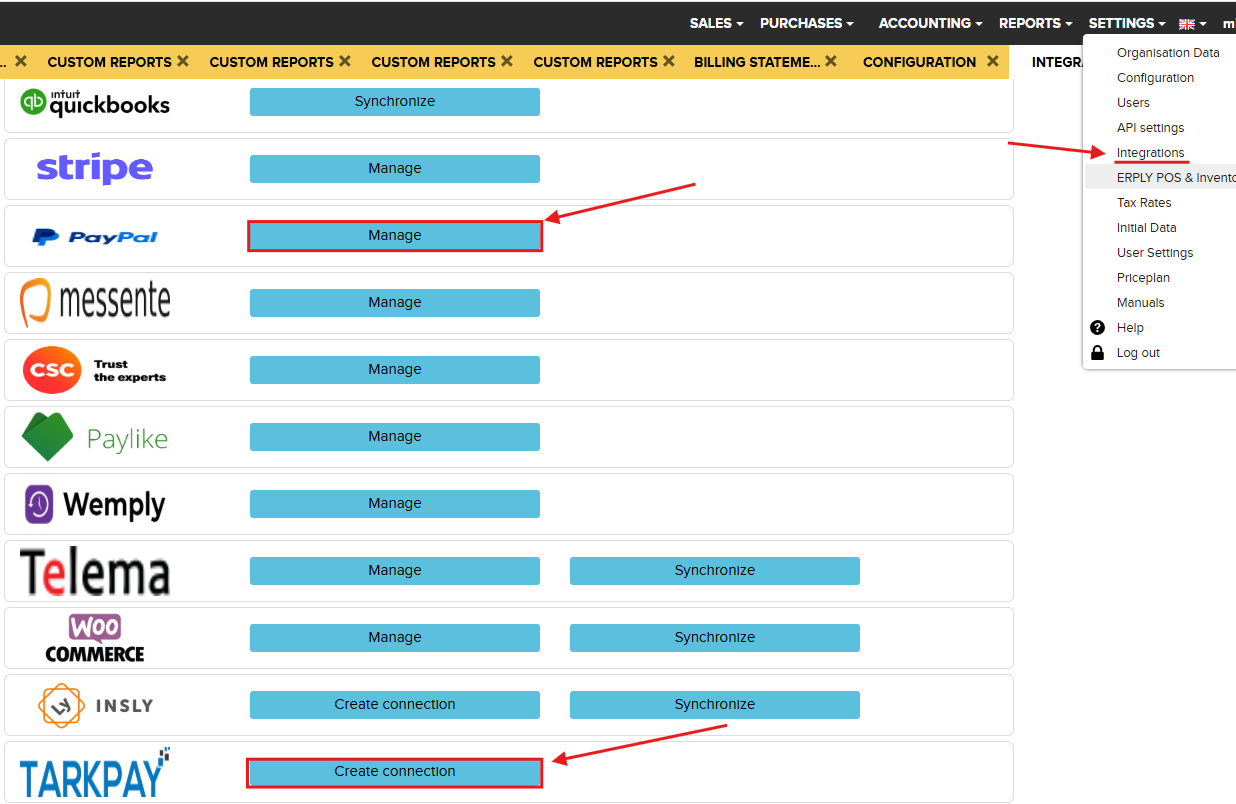
2. PayPal and TarkPay
- Go to Settings → Integrations
- TarkPay – provides Estonian bank payment options
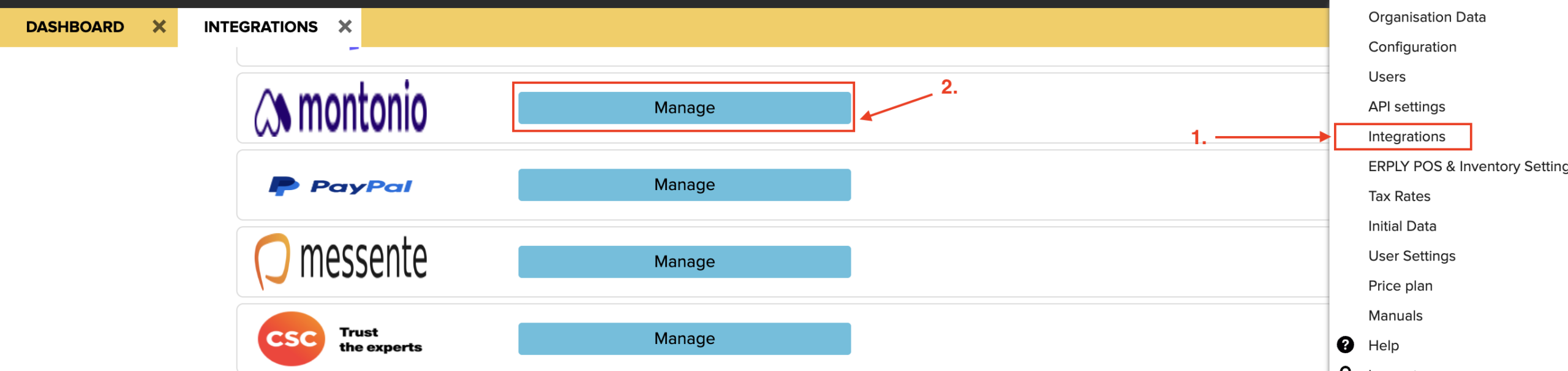
3. Montonio
- Go to Settings -> Integrations
- Montonio and the “Manage” button
- Add the Montonio Access Key and Secret Key (available from Montonio)
- “Save”
Payment link directly in pdf to redirect to Paypal vs link where you can select how you want to pay
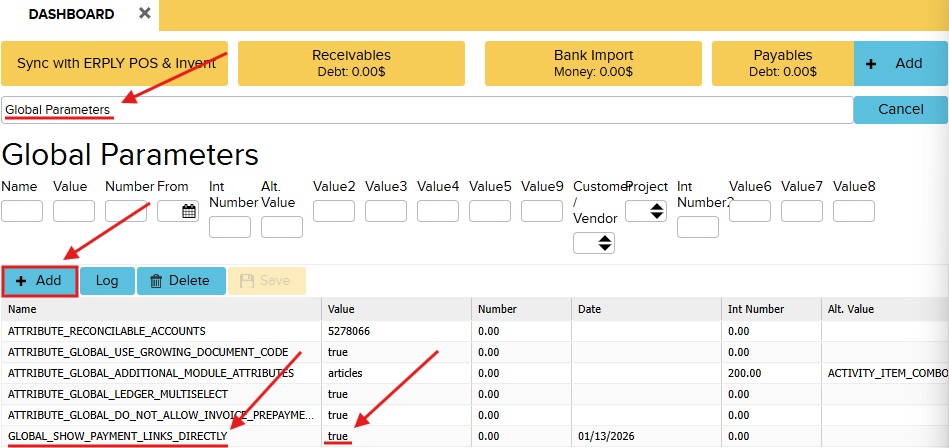
If you need to add these links inside the PDF so that they redirect automatically to the payment provider, then you need to add Global Parameter:
- Go to Dashboard
- Search for Global Parameters in the Dashboard
- Add a new row:
- Name: GLOBAL_SHOW_PAYMENT_LINKS_DIRECTLY
- Value: true
- Click Save
After the parameter has been added, the system will allow you to insert individual direct links for each payment provider into the PDF.