Payment links
Payment links allow customers to pay invoices directly by clicking a link in the invoice PDF, email, or payment reminder. This tutorial covers how to set up and manage payment links in ERPLY Books.
Customer experience:
- Customer receives an invoice with a payment link
- Clicks the payment link
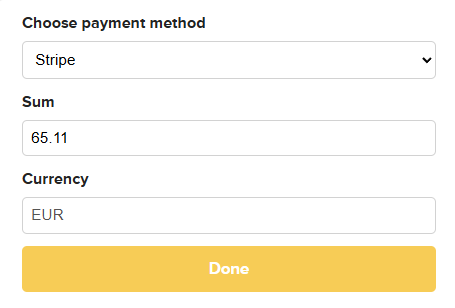
- Payment window opens showing:
- All configured payment methods
- Outstanding unpaid amount
- Option to select currency
- Customer selects payment method and amount
- Clicks Done
- Redirects to payment provider (e.g., Stripe) to complete the transaction
Supported Payment Providers
ERPLY Books supports:
1. Adyen and Stripe
- Set up directly in payment link settings (Open Settings → Configuration)

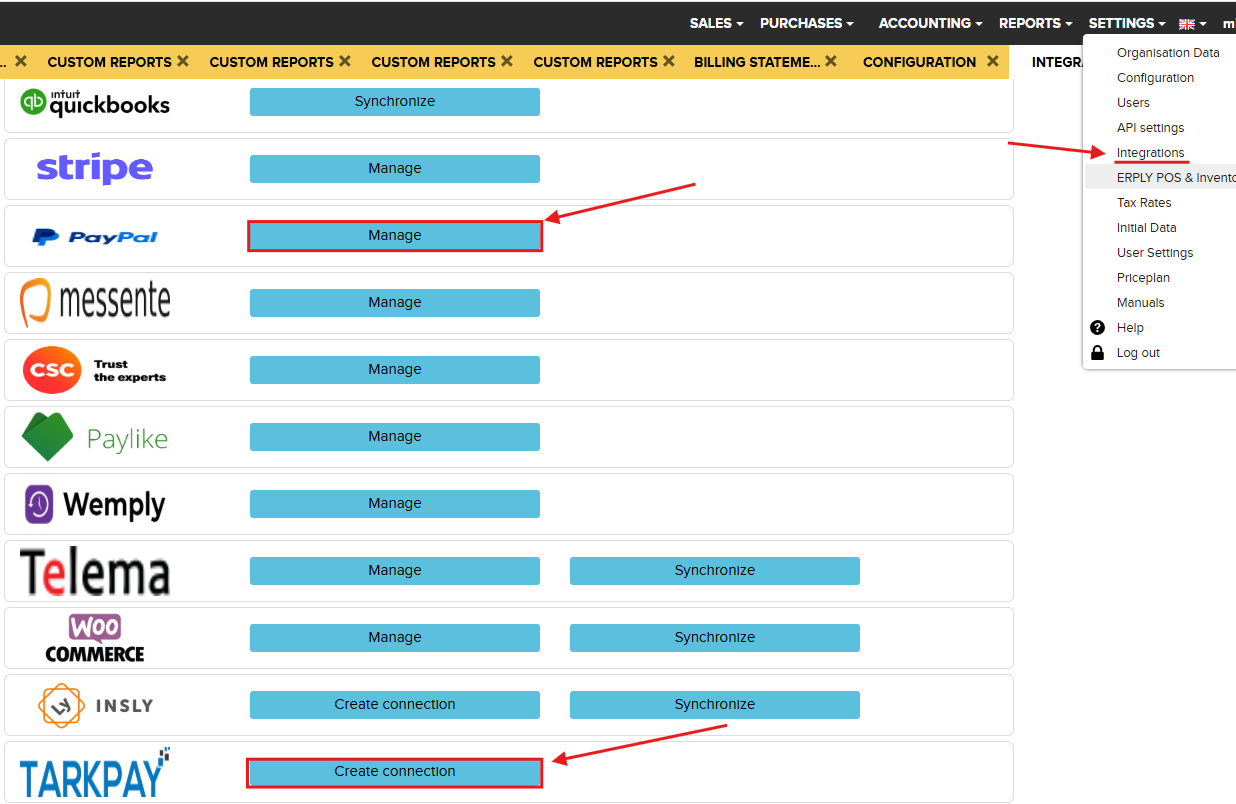
2. PayPal and TarkPay
- Go to Settings → Integrations
- TarkPay – provides Estonian bank payment options
Payment link directly in pdf to redirect to Paypal vs link where you can select how you want to pay
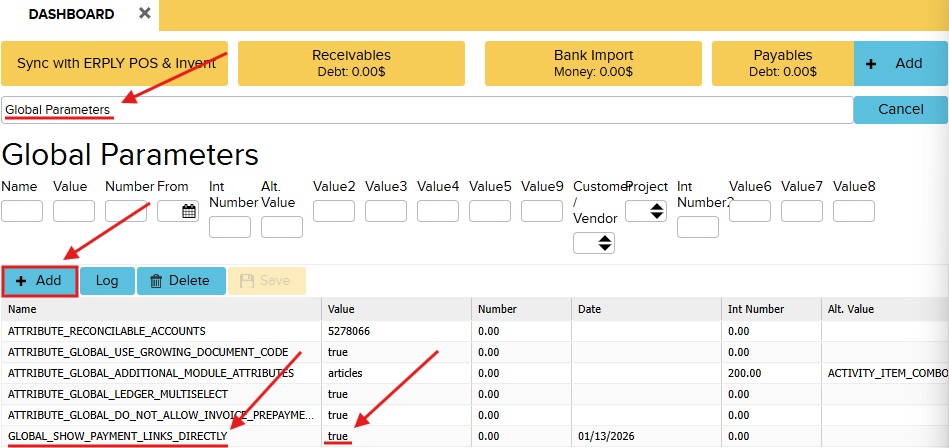
If you need to add these links inside the PDF so that they redirect automatically to the payment provider, then you need to add Global Parameter:
- Go to Dashboard
- Search for Global Parameters in the Dashboard
- Add a new row:
- Name: GLOBAL_SHOW_PAYMENT_LINKS_DIRECTLY
- Value: true
- Click Save
After the parameter has been added, the system will allow you to insert individual direct links for each payment provider into the PDF.