
Using ERPLY Books on Mobile
Erply Books’ new mobile-friendly login solution makes accessing your accounting faster and more convenient than ever. Log in directly from your phone, select the appropriate organisation, and continue working – everything you need is now always within reach, no matter where you are.
All browsers support mobile login.
You can log in using this link.
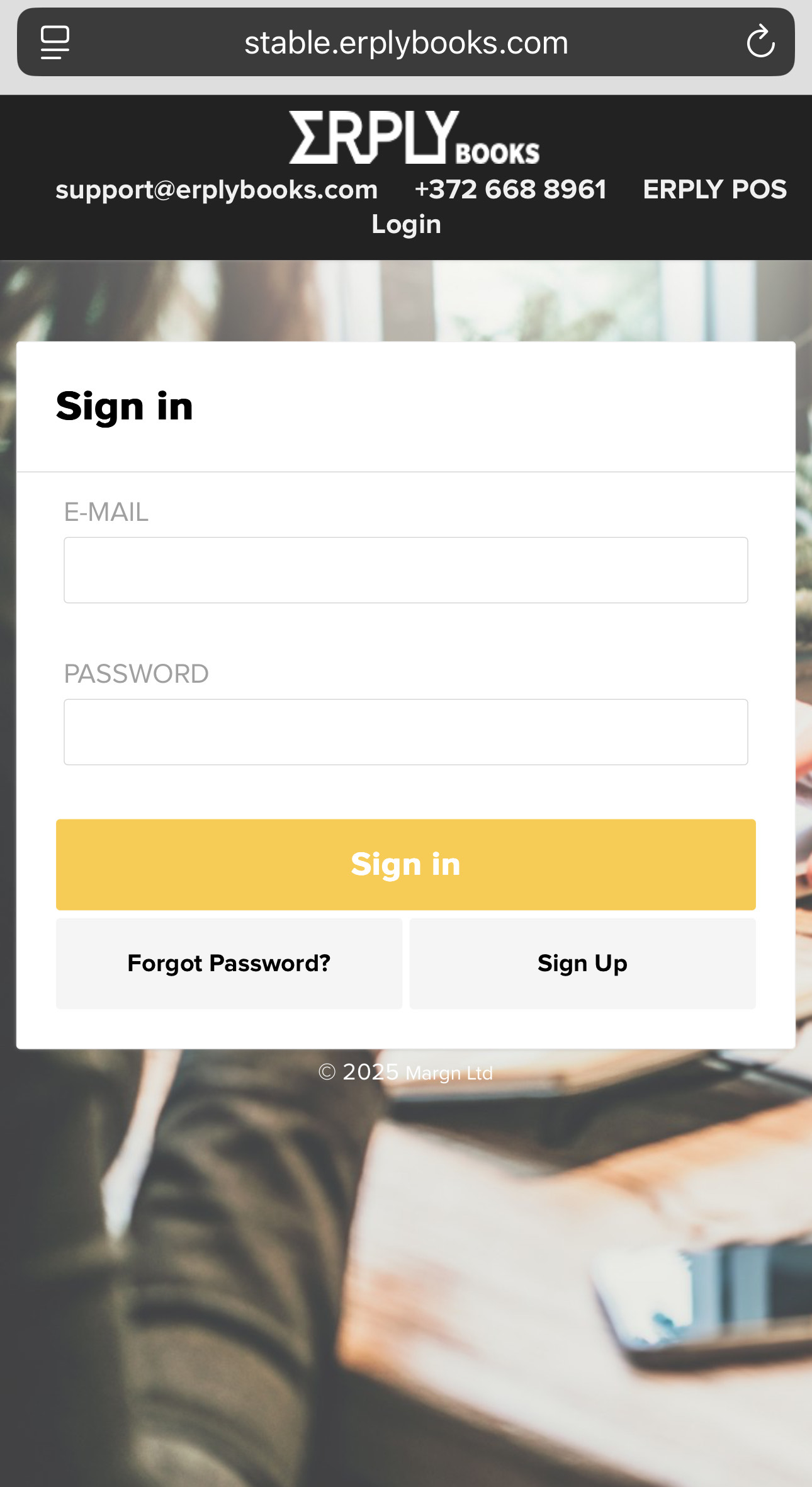
Just like with the regular login, you’ll need to enter your email address and password to sign in.
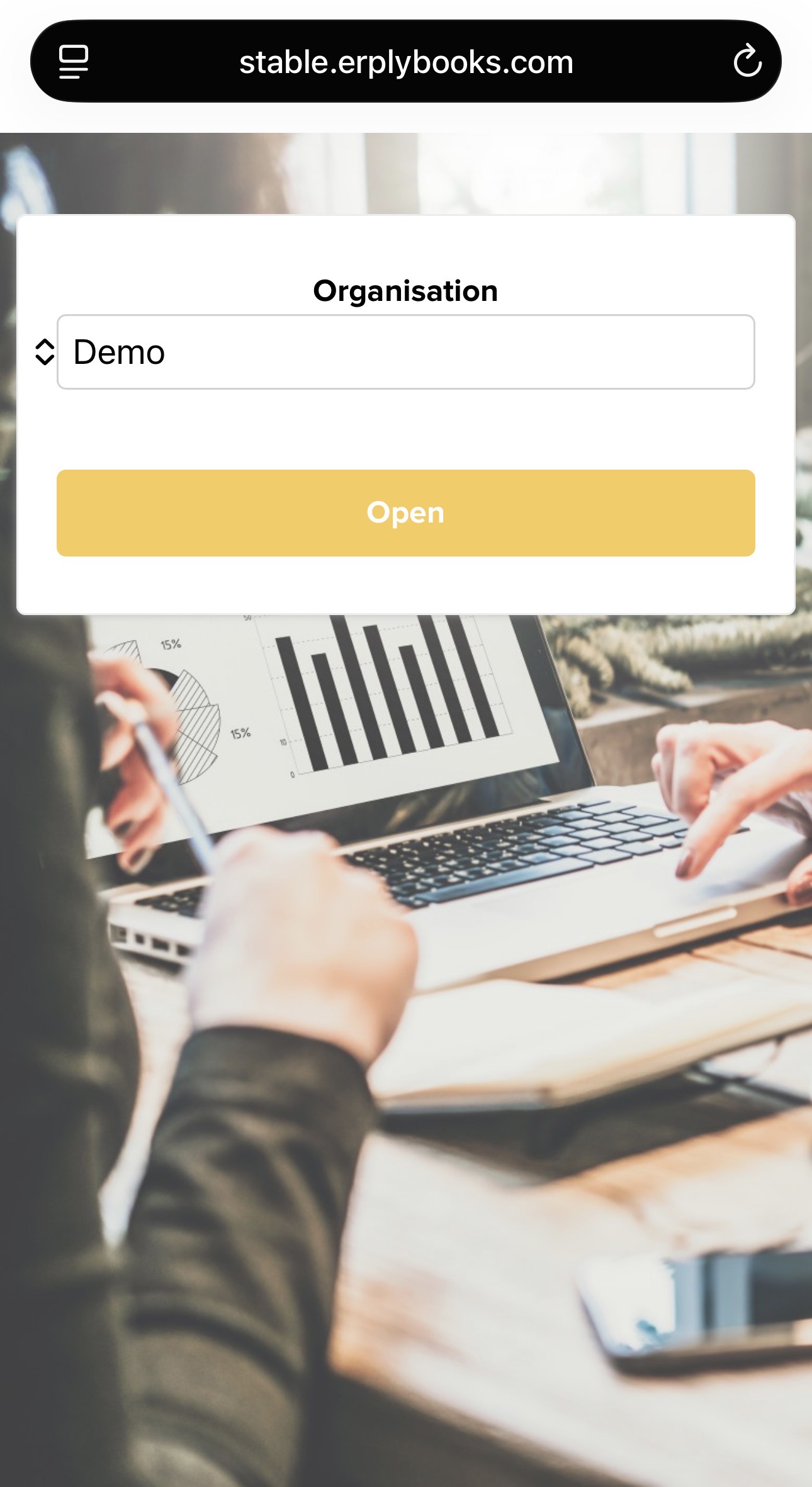
After logging in, a screen will appear where you can select the organisation you want to access and then press on the yellow button “Open”.
Once logged in, the homepage will be displayed, and you can proceed just as you would on a computer.
Mobile View: Menus
The functions are the same as in the old user interface. The only difference is their location.
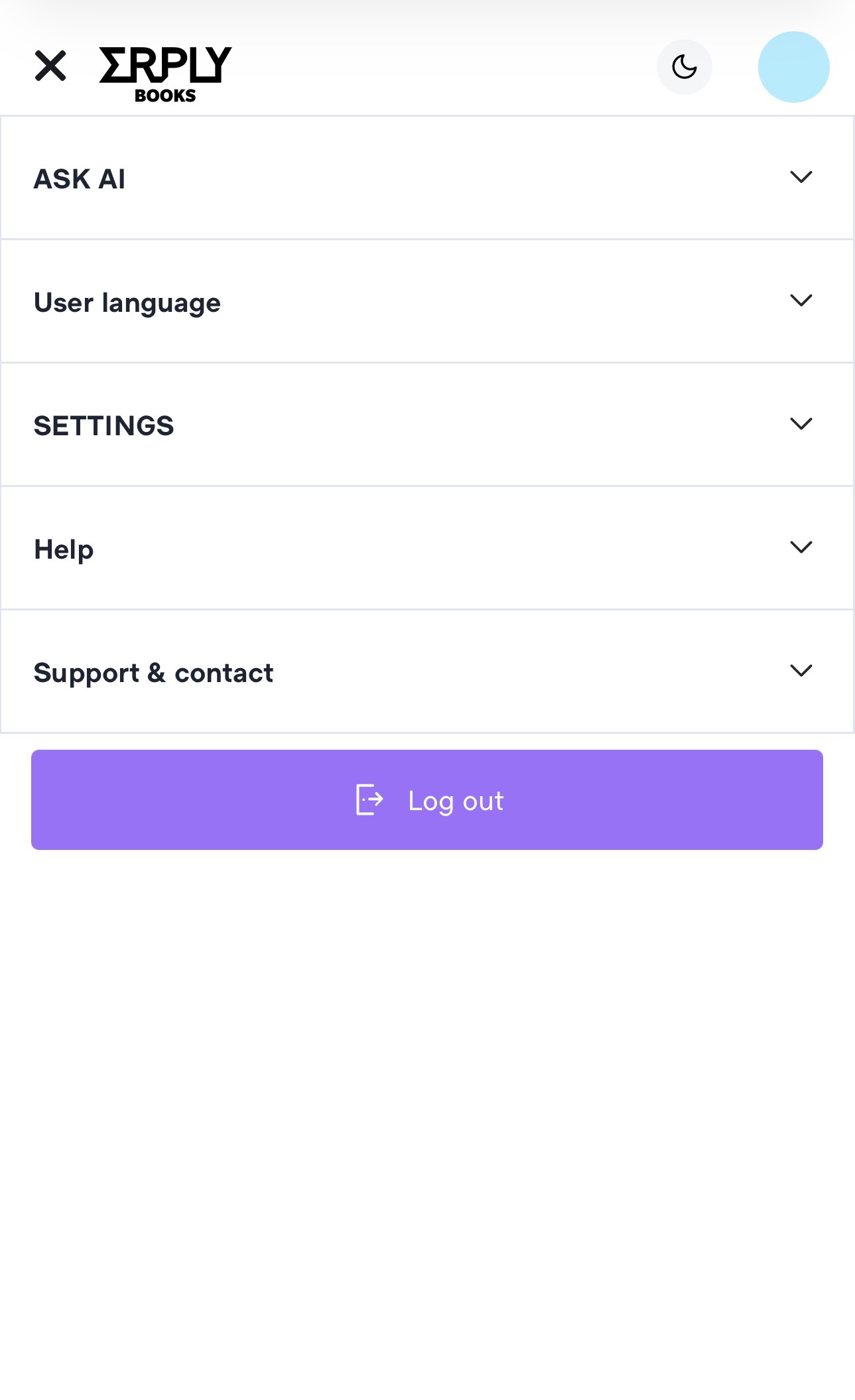
In the upper-right corner, under the “Profile” icon (the blue circle) you can find the following functions:
- ASK AI,
- User language,
- Settings,
- Ask for help,
- Support & Contact and
- button “Log Out”.
Under “Settings”, you can find:
- Company Information,
- Chart of Accounts,
- System Accounts,
- VAT Types,
- Dimensions.
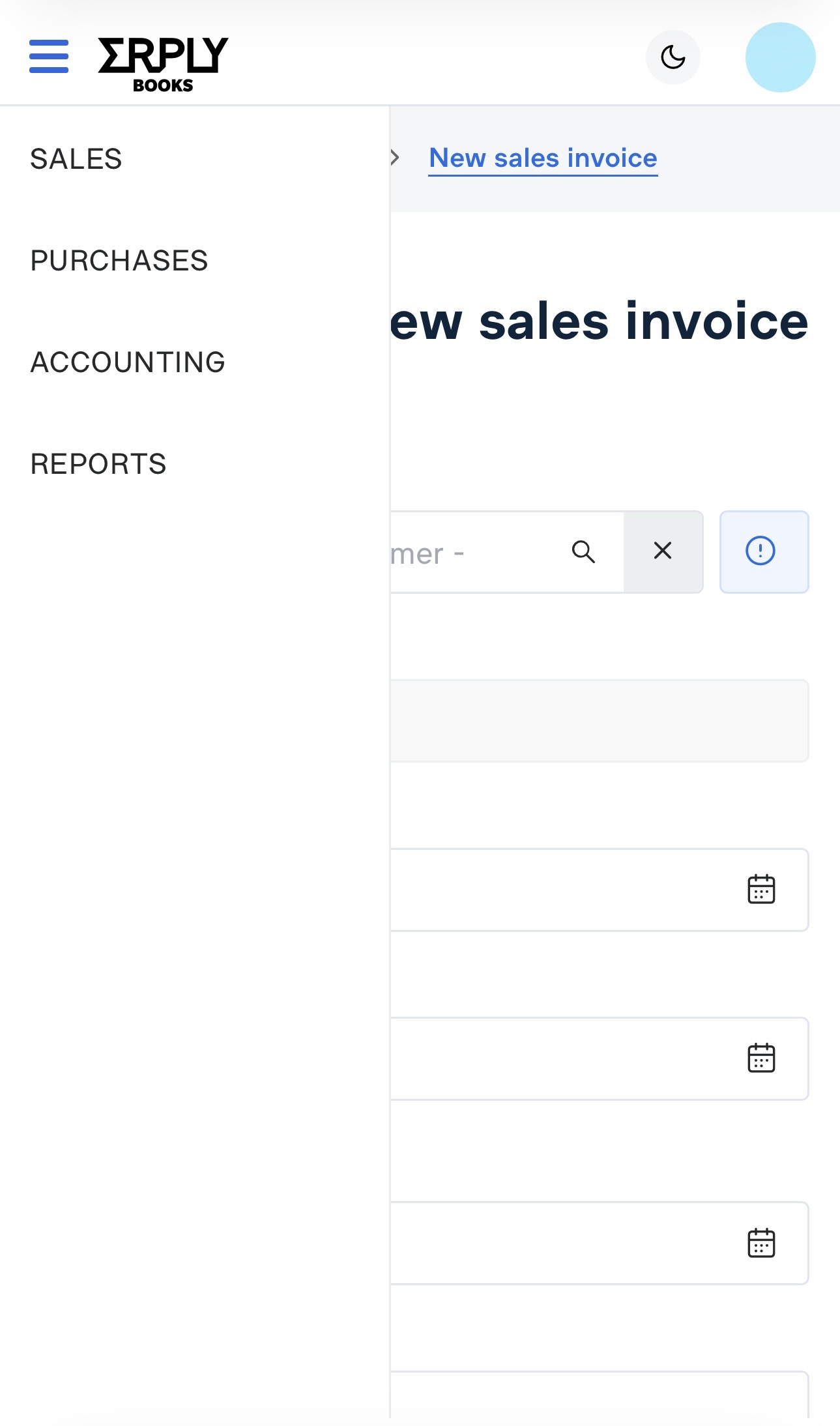
On the left side, under the three-line menu icon, you can find all available modules: Sales, Purchases, Accounting, Reports.
Example: “Reports” -> “Sales Invoices”
The following example shows how to navigate the ERPLY Books mobile version using one module. Other modules work in a similar way.
The “Reports” section currently includes:
- Sales and Purchase Invoices
- Money In/Out
- Balance Sheet
- Income Statement
- Report Generator
- Other Reports (saved reports)
- VAT Report.
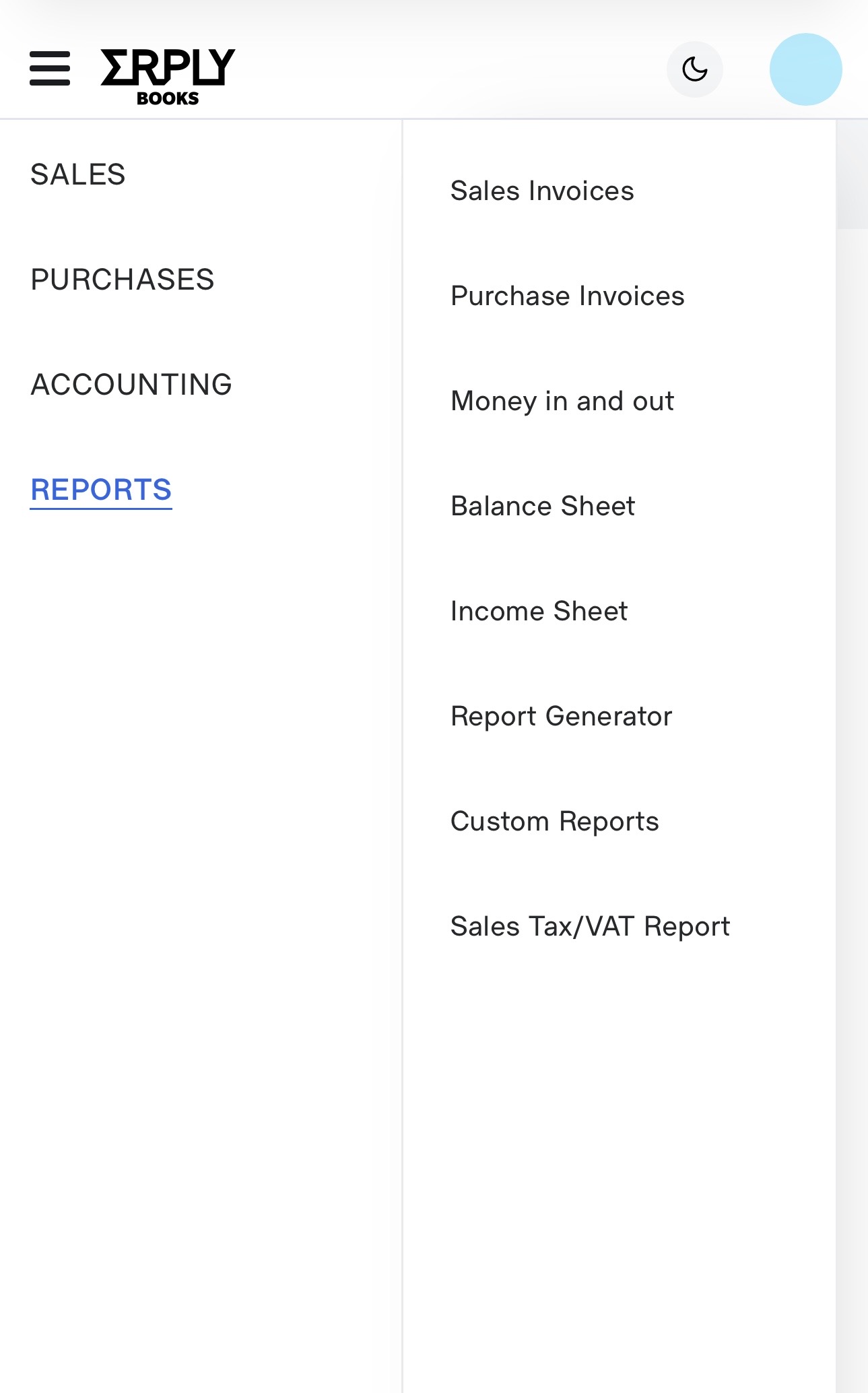
When you select “Sales Invoices”, you must search for the invoice you want to view.
In the old user interface, all sales invoices within the default selected period are displayed automatically. In the new user interface, you must click “Search”. The image below shows how the module appears on a phone.
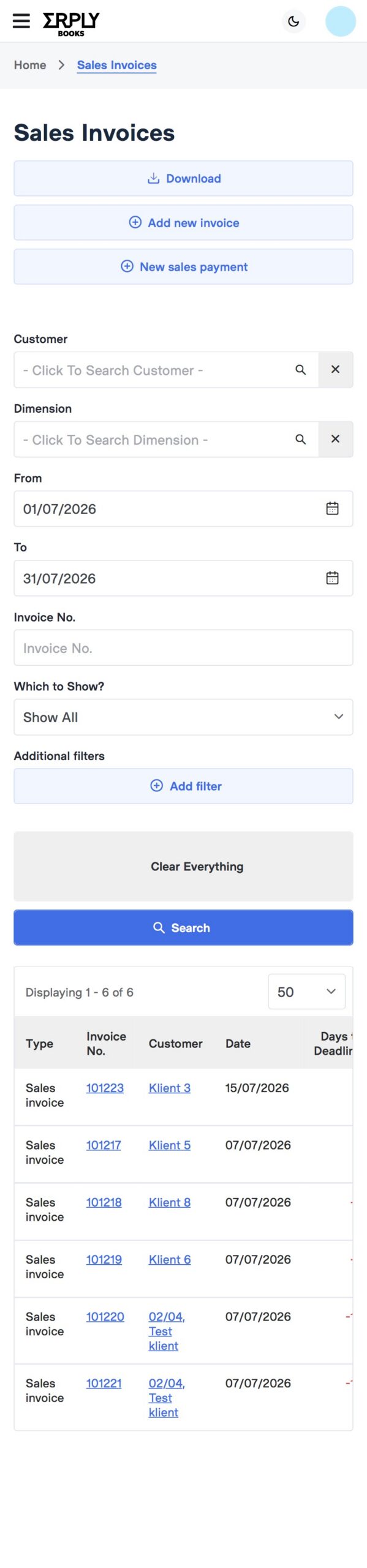
To view the complete contents of the sales invoice table, swipe to the left. The same applies to other modules.
Frequently Asked Questions (FAQ)
What if I don’t remember my password?
– Click the “Forgot password?” link on the login page and follow the instructions.
Do I need to download an app to log in?
– No. Simply use your phone’s web browser.
Can I switch between multiple companies?
– Yes. After logging in, you can switch organizations at any time.