
Reminders of open receivables in ERPLY Books
Sending reminders to customers for open receivables can be quite time consuming operation. ERPLY Books has managed to automatize this process in a large scale. Sending reminders is not that time consuming any more. While we developed this module, we have paid attention to several practical solutions. For example sending reminders to all debtors at once and differing debtors by dates, projects or customers. You only have to follow the following phases and time consumption is minimal.
Overdue open receivables
First action is to find invoices that are overdue. Best way to find invoices that are overdue is: “Dashboard” > “Sales” > “Customer report”.
By pressing “Customer report” opens module “Aged receivables”. Program shows all overdue invoices. If necessary, you can make invoices list more specifical. That means user can separate invoices by date, customer name or project.
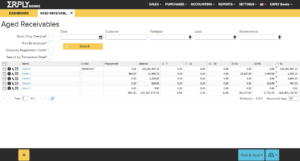
First, You must mark customers with whom You want to interact. For this, add a “tick” in front of invoices.
By opening “Export” dropdown, software enables You to choose between following options: email, HTML, PDF, Excel, CSV. When you export corresponding invoices to HTML or PDF format, then opens a possibility to print whole overdue invoices report. When choosing email it is possible to send the report to Excel with ease. CSV export means that you can download the report to your computer in corresponding formats (xlsx or csv).
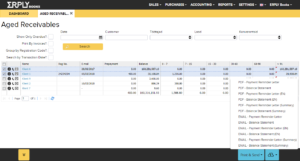
Pressing “Save & Send” opens a dropdown which have options like:
- PDF Payment reminder- software downloads a pdf file about payment reminder.
- PDF Balance notification – software downloads a pdf file about balance notification.
- Email Payment reminder – software sends an email with payment reminder to the customer.
- Email balance notification – software sends an email with balance notification to the customer.
– Clicking on this “i” icon, opens a window where You can change or add all data that is connected to the customer (general data, contact data, bank data);
– Clicking on this phone icon, software displays customer’s phone number. There is also a possibility to add notes about the call. For example Customer answered/ did not answer; Customer promised to pay at once/pay in a week.
– Clicking on envelope You can send particular balance notification/reminder to the customer. For sending emails You have to have saved customers emails to ERPLY Books. Simplest way to do this is by pressing “i” icon on front of the invoice. If you have not add an email to the customer, software offers solution to print balance notification/reminder in order to send it by mail.
In ERPLY Books you apply automatic payment reminders.
If you want to do that find from dashboard “Automatic customer reminders/statements”. More information here.