
Invoice row connecting
The invoice row connecting function allows you to link different invoice rows together, for example:
- A sales invoice row with a contract
- A sales invoice row with a purchase invoice row
- A purchase invoice row with a sales invoice row etc.
This helps track the connections between costs and revenues better and provides a more accurate overview of the profitability of an invoice or the fulfillment of contractual obligations.
The function works if you go to Global Parameters (search “Global Parameters” on the homepage) and activate the following rule:
- Name: GLOBAL_CONNECT_ROWS
- Value: true
Once this is added, save the changes and refresh the page.
Examples of use
If a contract specifies a specific product price and a corresponding sales invoice is issued, the row can be linked both to the contract and the related purchase invoice.
If a transport service is purchased, its cost row can be linked to a specific sales invoice row to assess the profitability of the invoice row.
Using this function
First create or open any invoice. At the end of each invoice row, there is a chain icon. Click on it, and a new window will open where connections can be made.
You can link up to 2 documents at the same time but it is not mandatory. If you want to link only one document, you only need to fill in the first 3 fields; otherwise, fill them all in the following order.
- Type: from which document type to take the document
- Invoice: from which invoice document to take the invoice row, enter the invoice number
- Document row: based on the selected invoice document, all invoice rows will be displayed from which you can make selections
First, you need to select the “Type” field; otherwise, the system will not allow you to make further selections.
When all fields are filled, click the yellow “Done” button and then you can close the small window.

Note: When the pop-up window for adding connections is open, you can freely navigate in other modules and search for the necessary documents without closing the window or having to re-enter the data once you return to this page.
On the invoice row there is a separate field called “Connections” where all connections are displayed.
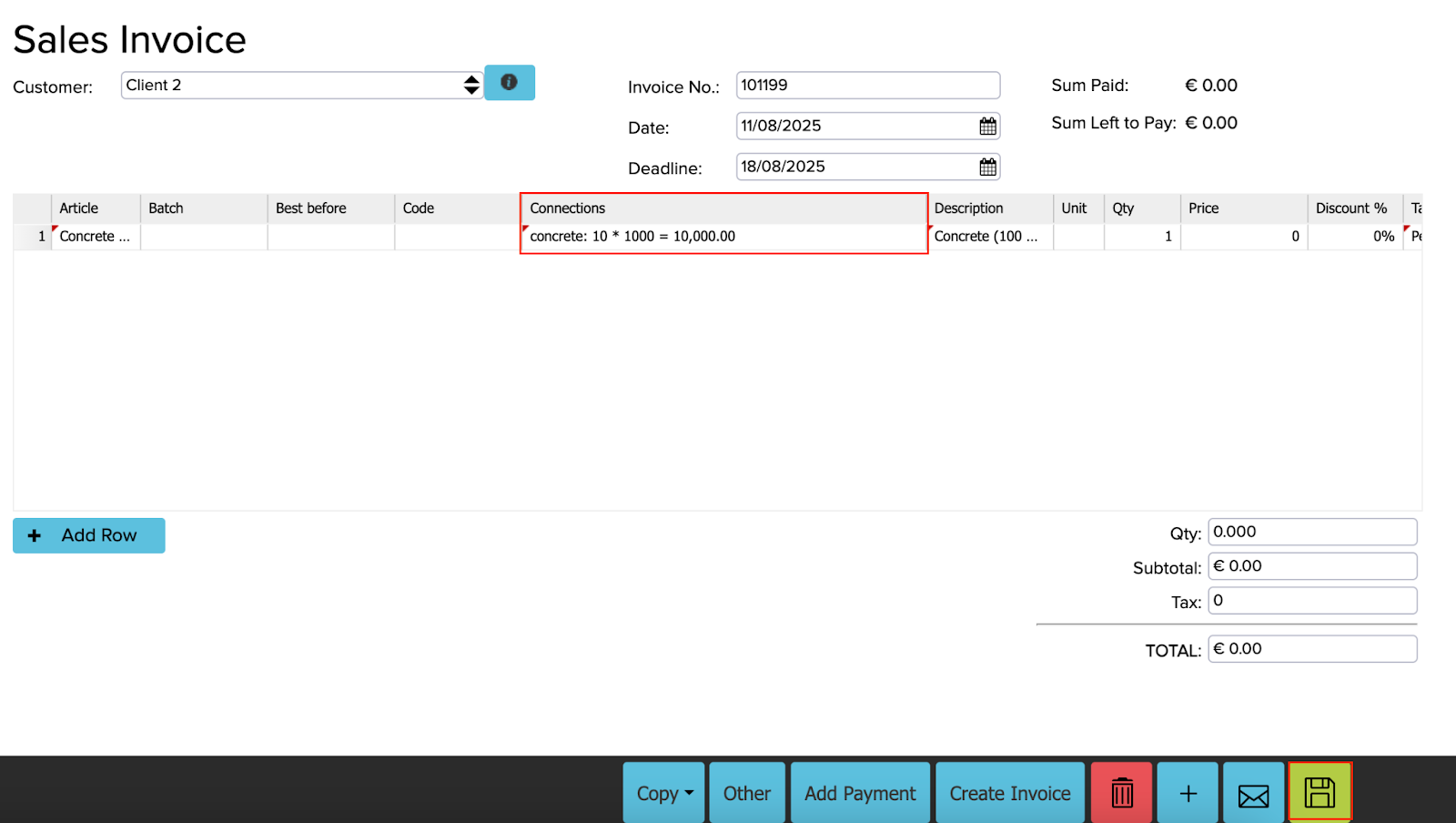
If you open the invoice to which the connection was made, it will also be displayed there.

Custom report
A separate report is available for invoice row connections, which shows all connections. To add it, do the following:
- Copy the JSON:
{“parameters”:[{“rules”:[{“tableName”:”ARTICLE_ROW”,”fieldName”:”DEL_DATETIME”,”referenceType”:”IS_NULL”,”value”:null,”filterName”:””}],”index”:0},{“rules”:[{“tableName”:”ARTICLE_ROW_CONNECTION”,”fieldName”:”DEL_DATETIME”,”referenceType”:”IS_NULL”,”value”:null,”filterName”:””}],”index”:1},{“rules”:[{“tableName”:”ARTICLE_ROW_CONNECTION”,”fieldName”:”CREATE_DATETIME”,”referenceType”:”MORE_THAN”,”value”:”2025-07-14T21:00:00.000Z”,”filterName”:””}],”index”:2}],”additionalColumns”:””,”storeParameters”:””,”outputLayout”:””,”limit”:””,”start”:””,”summaryRowField”:””,”groupByFinal”:””,”orderBy”:””,”orderByField”:””,”comparisonColumns”:””,”organisationIds”:””,”tables”:”BASE_ARTICLE_ROW|ARTICLE_ROW_CONNECTION|ARTICLE_ROW”,”output”:”ARTICLE_ROW.NAME|ARTICLE_ROW.PRICE|ARTICLE_ROW.QUANTITY|ARTICLE_ROW.ROW_SUM|BASE_ARTICLE_ROW.NAME|BASE_ARTICLE_ROW.PRICE|BASE_ARTICLE_ROW.QUANTITY|BASE_ARTICLE_ROW.BASE_ROW_SUM|ARTICLE_ROW.TYPE_CODE|BASE_ARTICLE_ROW.TYPE_CODE|BASE_ARTICLE_ROW.BASE_ARTICLE_ROW_COGS_FROM_LEDGER|ARTICLE_ROW.ARTICLE_ROW_COGS_FROM_LEDGER|BASE_ARTICLE_ROW.DOCUMENT_ID”,”groupBy”:””}
- Search “Parameters for Report Generator Saved Reports” in the dashboard.
- In the “Name” field, you can enter any desired name.
- In the “Value” field, paste the JSON and save it.
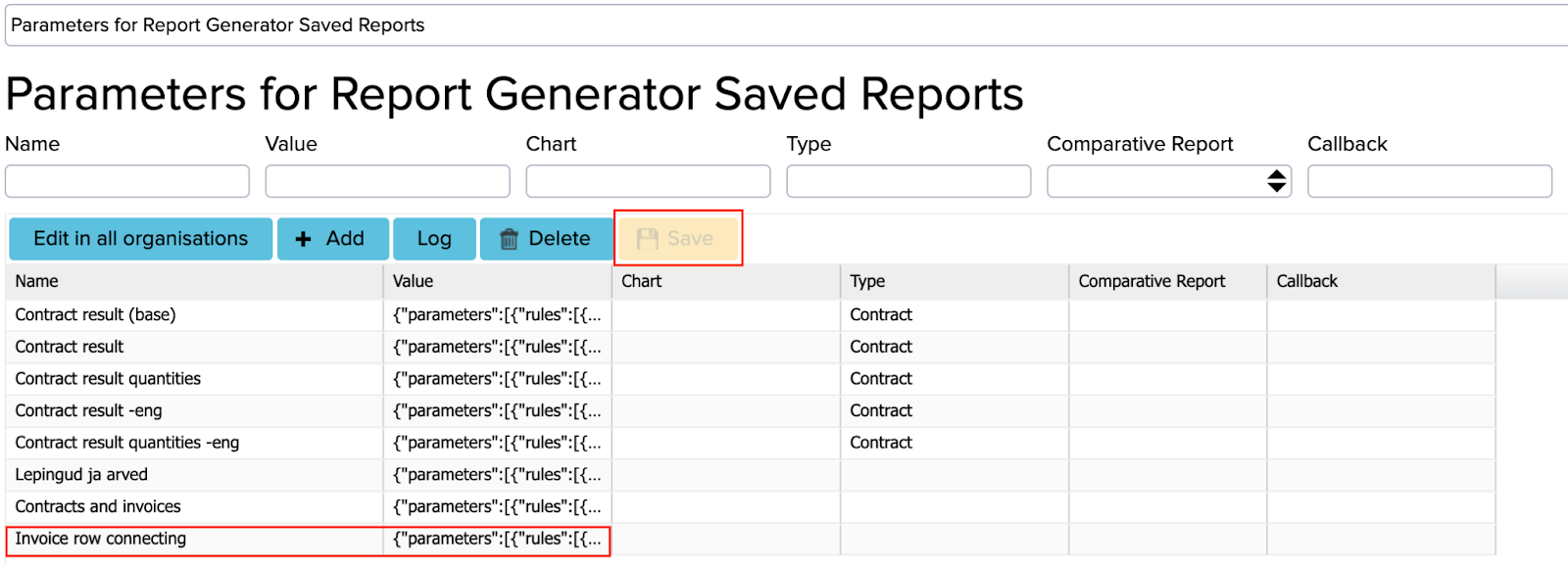
Once saved, refresh the page and then go to “Reports” -> “Report Generator” -> “Custom Reports”.
NB! This feature requires that the setting “60. Use contracts functionalities?” (Settings → Configuration) is enabled. If this option is not turned on, the custom report will not function correctly.
When you open the report, all required fields are already filled. You can change the date as needed.
When you click “Search”, the full report will be displayed.
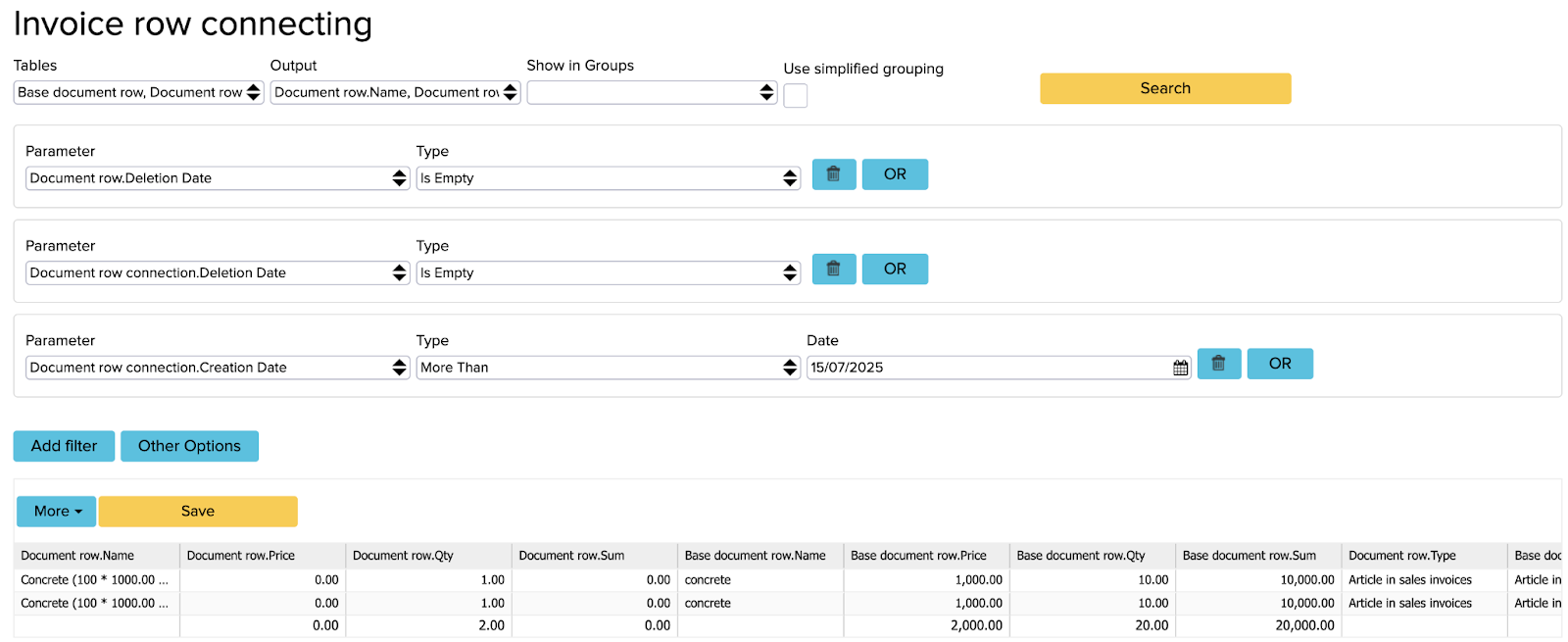
All columns with “Document row” in the name show the connected document.
All columns with “Base document row” in the name show the document to which it was connected.