
Inventory difference account and additional costs
When receiving goods into inventory, it is sometimes necessary to include additional costs related to those goods in their cost price. ERPLY Inventory offers several ways to handle this. In this guide, we will look at these options and explain how to correctly transfer additional costs that increase inventory value to ERPLY Books, using transport costs as an example. If purchase waybills are used and additional costs are recorded there, then purchase waybills must also be synchronized to ERPLY Books. The checkbox in settings (Settings → ERPLY POS & Inventory Settings → Other Options →Do not Synchronize Purchase Waybills?) must not be checked. By default, this checkbox is enabled for all accounts. Therefore, to enable the synchronization of purchase waybills, the checkbox must be cleared.
Inventory differences are used for discrepancies arising from inventory. Inventory value includes all expenses related to bringing the goods into the warehouse. In ERPLY Inventory, it is possible to define for each product whether it is a stock product or not. On the product card, you can define whether the item is a non-stock product or a service by clicking the magnifying glass icon.
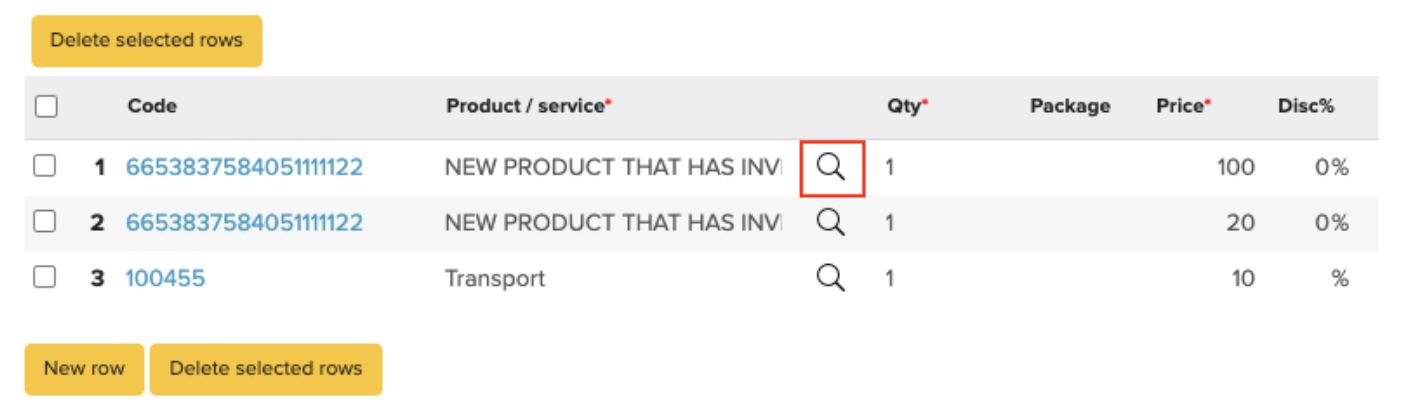
Then search for the product and click the icon next to its name:
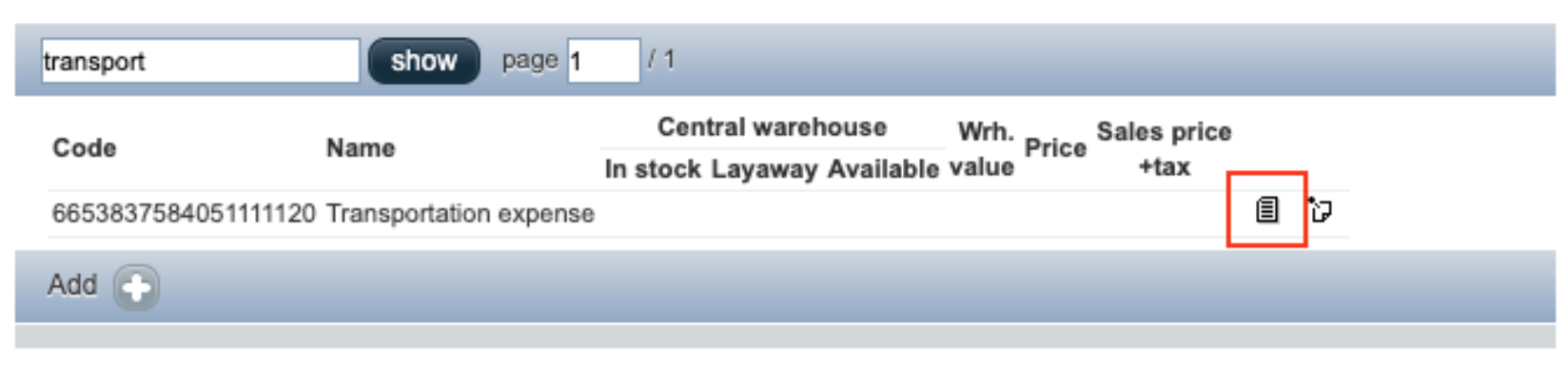

If the product is a non-stock product or a service, it does not have any inventory value. Non-stock items are synchronized to ERPLY Books under purchase and sales articles, where you can define which accounts should be used in journal entries when this item appears on a purchase invoice.
Inventory difference account setup
To set up Inventory difference account(s), go to “Settings” > “Initial Data” > “System Accounts”.
Add a new line, select “Inventory difference account” as the system account type, choose the desired account and save.
1. Inventory Value < subtotal
Let’s look at a situation where we want the transport added to the purchase invoice to be expensed directly and not included in the inventory value. Transport is a non-stock product and as we can see from the image below, the subtotal (NET) is higher than the Inventory value (NET + Costs) recorded on the invoice.

Created entries:
D: Inventory (Inventory Value) – 120€
D: Transport cost (subtotal – Inventory Value) – 10€
D: VAT (total – subtotal) – 26€
C: Accounts payable (total) – 156€
2. Inventory Value (NET+COSTS) = Subtotal (NET)
Here, you have to select all your products on the purchase invoice-waybill and you also have to add the transport row to make the TOTAL cell correct.
In this case, the inventory value can be equal to the subtotal. This happens when the transport cost is added to the inventory value. To do this, we need to enter the transport cost in the ‘Additional Costs’ field

Created entries:
D: Inventory (subtotal) – 130€
D: VAT (total-subtotal) – 26€
C: Accounts payable (total) – 156€
3. Inventory Value > Subtotal
This applies when the transport cost is issued as a separate invoice. For example, goods are received into the warehouse at a cost of 100€ and the transport costs 20€. The transport cost has to be sent as a separate invoice because if the transport is on the same invoice, then the invoice NET value would be 120€ and the inventory value is equal to the NET value. Therefore, this is the first situation (described above, point 2).
When the goods are accounted for in the warehouse, all products must be added on the purchase invoice-waybill to make the TOTAL value correct. If the transport invoice is sent at the end of the month, you need to reopen the purchase invoice and add the transport cost in the “Additional costs” field.
The same situation can occur when a purchase credit is made and the refund goes out with the FIFO method.
3.1)
If the “Inventory difference account” is defined:
D: Inventory (Inventory Value)
D: Inventory (subtotal-Inventory Value)
D: VAT (total – subtotal)
K: Inventory difference account
K: Accounts payable (total)
In this case, you need to select the “Inventory difference account” for the additional cost purchase invoice. If the subtotal is subtracted from the inventory value, then the final value is negative so it is taken with a debit to the inventory difference account and the inventory difference account goes to zero. Never select the transport expense account on a transport invoice!
3.2)
When “Inventory difference account” is not defined:
D: Inventory (subtotal)
D: VAT (total-subtotal)
K: Accounts payable (total)
In this case, you need to select “Inventory account” for the additional cost purchase invoice. Never select the transport expense account on a transport invoice because if you do, then the inventory value will be bigger than the subtotal and when you sell the goods, it will go under the cost of goods in the inventory value not in the NET value – otherwise, the cost will be recorded twice.
This is why “Additional costs” should be added in both cases: when the inventory value is equal to the subtotal (point 2) or when the inventory value is bigger than the subtotal value (point 3).
Additional Costs when using Waybills
Additional costs are always linked to the document through which goods are received into inventory, such as a purchase waybill or waybill .
A waybill is not an accounting document and therefore does not generate accounting entries by default. To include waybills in accounting, the setting “Do not Synchronize Purchase Waybills?” must be disabled. Since a waybill is not an invoice, it does not yet create a liability to the supplier. The liability is recognized only when the purchase invoice is received. Until then, a Purchase Waybill Interim Account is used as a temporary clearing account.
The accounting entry generated from the purchase waybill is:
D: Inventory
K: Inventory difference account (waybills)
The interim account remains open until the related purchase invoice is received. When the purchase invoice arrives, the interim account is cleared and the actual supplier liability is recorded:
D: Inventory difference account
D: VAT
K: Accounts payable
Managing additional costs in ERPLY Books
Managing additional costs can also be done in ERPLY Books. To enable this, you need to check the box: Settings → Configuration → Activate additional costs plugin?

Once the plugin is activated, you can add additional costs to purchase invoices that are synchronized from ERPLY warehouse (i.e., when additional costs are sent as a separate invoice). To do this, open a new purchase invoice, enter the original Invoice No: into the field „Additional Costs“ (meaning the invoice to which you want to assign these costs),set the correct price, select Inventory difference account and save the purchase invoice (by clicking the green button). When the purchase invoice is saved, the amount you entered will be transferred to ERPLY Inventory under Additional Costs.
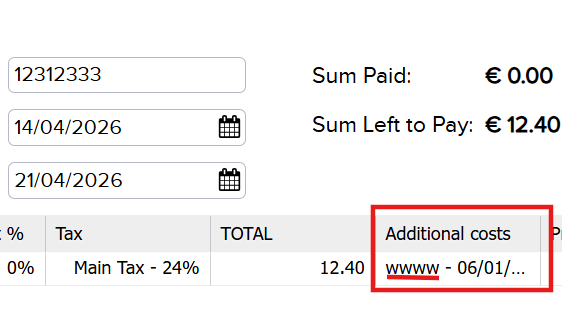
After assigning the invoice, it is also possible in ERPLY Books to view linked invoices in the purchase and sales invoice lists. In this example, open the purchase invoice list (Purchase → Purchase Invoices) and check the “Connections” column.
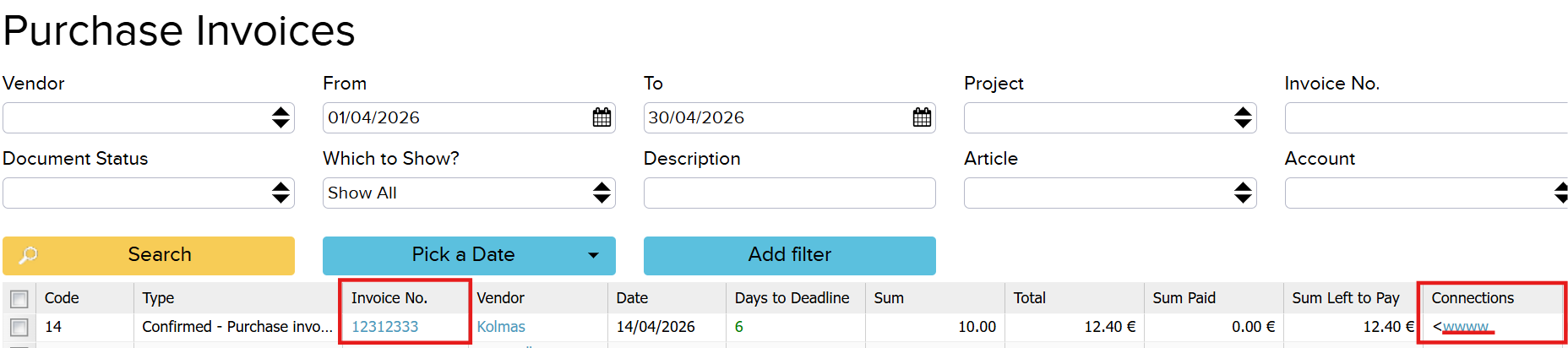
To use this functionality, you must enable the option in ERPLY Books settings (Settings → Configuration) by checking “Show document connections?”.
NB! After adding the GLOBAL_SAVE_ROW_ITEM parameter, it is no longer possible to add additional costs to old invoices using this method. This solution works only for new invoices.