
Price plan Vendor/Customer
The price list modules are convenient to use for companies that have multiple different warehouses.
This solution is intended primarily for waste management and manufacturing companies.
By default, the price is found under “Purchase and Sales articles” all (“Purchase”/”Sales” –> “Purchase and Sales articles”) in the “Base Price” field. This is the price that the system applies in a situation where no price plan has been selected or the price plan rules have not been activated. In that case, this price is always used. If desired, it is possible to change the price manually, but by default the base price is used.
Price plan(Vendor)
If you want to add a price for a supplier, open “Inventory” -> “Price plan(Vendor)”. The supplier price plan is used mainly in waste management companies, where rules need to be set for what price is paid at a certain location or what price is paid from a specific supplier. If you need such rules, you can use the supplier price plan.

- Vendor: if you want to add a price for a specific supplier
- Percent: what is deducted from all products
- Price
- Project: here you can select a specific warehouse to link the price to
- Article: if you want to add a price for a specific article
- From date (not shown in image): from which date the price becomes effective
- Until date (not shown in image): on which date the price validity ends
Price plan(Customer)
If you want to add a price for a client, open “Inventory” -> “Price plan(Customer)”.
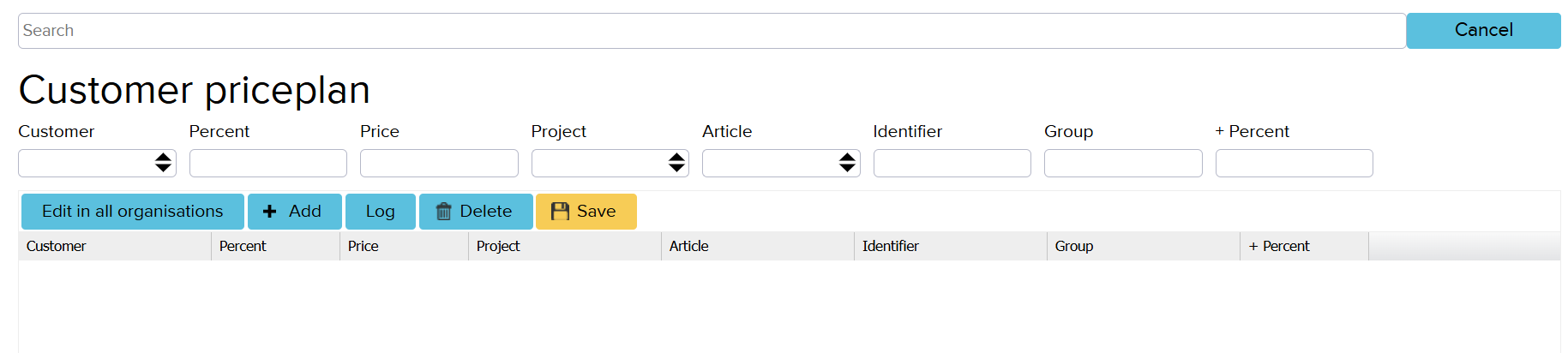
- Customer: if you want to add a price for a specific customer
- Percent: what is deducted from all products (discount)
- Price
- Project: here you can select a specific warehouse to link the price to
- Article: if you want to add a price for a specific article. If this field is left empty, the percentage applies to all products (when a number is entered in the percentage field).
- Identifier
- Group: client group; if a client is selected, there is no point in filling in this field, since the client takes priority over the client group (“Contacts” module field “code”)
- + Percent: here you can set an additional percentage. For example, if there is an agreement with the client that all products are discounted by 15% and then they have a campaign where an additional 10% is discounted on top of the 15%, you can enter the additional percentage in this field.
If you add a percentage in the “+ Percent” field, the system does not add “Percent” and “+ Percent” together. The “+ Percent” is applied on top of the already existing percentage. That is, if “Percent” is 15 and “+ Percent” is 10, the system performs the following calculation: 1-0,85*0,9=0,235=23,5%.
If you select a article under the item, you can set a price or a percentage. Both ways work. It is not advisable to set both at the same time, as the system will only use the first value.
The price list for both the client and the supplier applies according to what has been selected. If a client/supplier is selected, it applies only to that client/supplier. If an item is selected, the price applies only to that item. If both a client and an item are selected, the price applies only to the selected client and item.
For example, if a discount has been set for client groups, it makes sense to use the price list designated for those client groups. Similarly, if a specific client has a contractually agreed discount, whereby they receive, for example, a 20% discount off all base prices, it makes sense to set that discount in the system as well.
More information can be found in this video: