ERPLY Books AI Functionality
The ERPLY Books system now includes a new artificial intelligence feature that helps you find answers faster and more conveniently.
This feature allows you to:
- ask questions directly from the system without contacting customer support
- use data from existing modules to find solutions or explanations
- automate searches – AI will look for answers in the right place for you
You can check the exact price in the price list.
How to make a query?
In many modules, there is a cloud icon button on which you can click to “Ask AI”.
Even if the button is not visible in the module you are currently using, you can still access this feature through other modules where the button is available.

Examples of modules where this function is available:
- “Sales” -> “Sales Invoices”
- “Sales” -> “Contacts”
- “Purchases” -> “Purchase Invoices”
- “Sales” / “Purchases” -> “Purchase and Sales articles”
- “Accounting” -> “Transactions”
- “Reports” -> “Money In and Out”
- “Reports” -> “Report Generator” (by clicking: “Build a report for me”)
- For the checkboxes (options) to appear in the “Ask AI” window, you first need to open the modules the data of which you want to use in the AI query.
For example, if you want to use both sales invoice data and purchase invoice data, you need to open both modules beforehand.
Note: When making an AI query, all required modules need to be open. If you close a module window, it will no longer appear in the selection list.
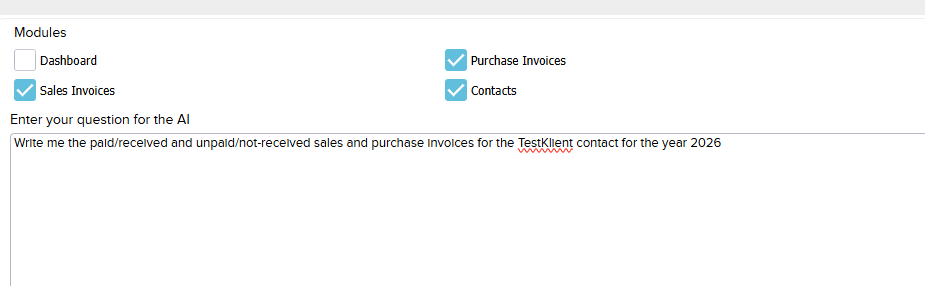
- When you open the “Ask AI” feature, it will display all the modules you have opened beforehand.
- Then, check the boxes for the modules the data of which you want to use in the query.
- Next, you have several options:
- Enter your question for the AI – here you should submit your question in as much detail as possible, so it’s easier for the AI to answer.
- Prompt: This can be left empty
- File upload – the system supports PDF, CSV, DOC, DOCX, XLS, XLSX, HTML, TXT, MD, GIF, JPEG/JPG, WebP, and PNG formats.
Once done, click “Send to AI”.

A confirmation window will then appear, giving you the option to decide whether to proceed with the AI query.
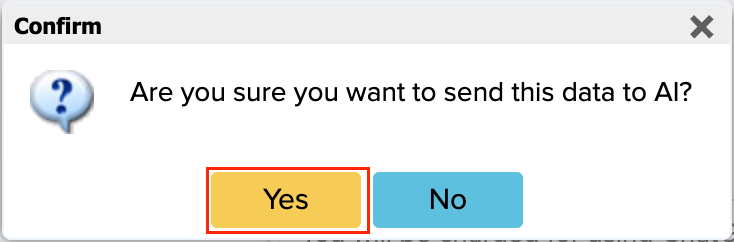
If you click “Yes”, the system will send the query to AI.
If you click “No”, the confirmation window will close, and you will return to the same view that was displayed before clicking “Send to AI”.
After clicking “Yes”, you will receive the AI’s response.
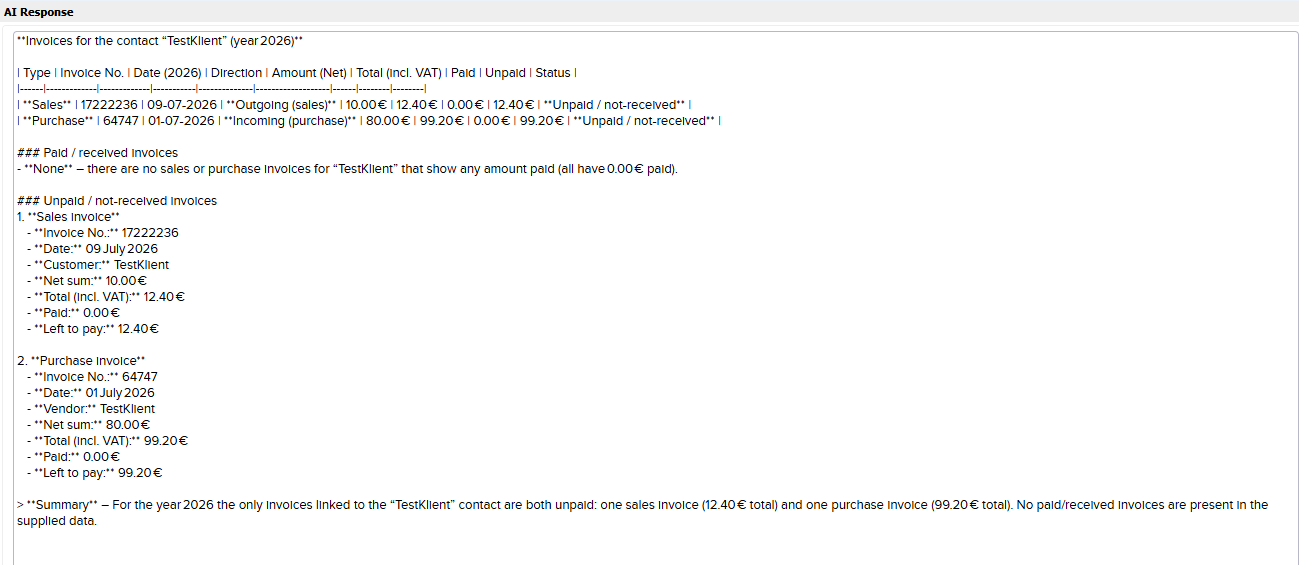
If an error occurs and the AI cannot provide an answer, an error message will be displayed.
AI responses are based on existing data and the system’s logic. If necessary, verify the responses or contact customer support at support@erplybooks.com.
Note: The Erply Books AI does not allow conversational interaction like ChatGPT — each query has to be formulated correctly in a single request. Each query will incur a fee unless you have integrated your own ChatGPT API keys.
Using your own ChatGPT API keys
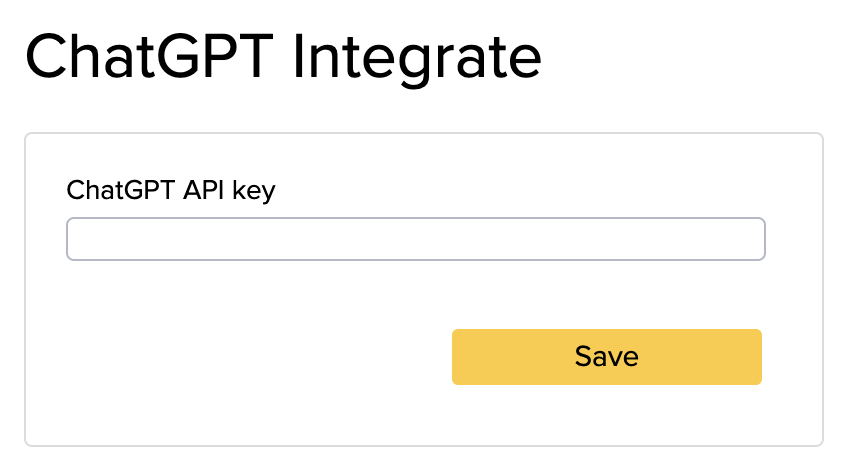
You can also use your own ChatGPT API keys, in which case no fees will apply for queries.
You can set this up by going to: “Settings” -> “Integrations” -> “ChatGPT” -> “Manage”.

A window will open where you can enter your ChatGPT API key. After entering the key, click “Save”.