
Group invoice confirmation
This guide describes different ways to mark sales invoices as paid in bulk in ERPLY Books..
Manual allocation
If you know exactly which invoices were paid and in what amount, you can mark them yourself:
- Select Receivables (in Dashboard or Sales → Sales Invoices → Open Receivables)
- Select the appropriate invoices
- Press Add Payment
- In the window that appears, review
- Paid Amount (the system initially enters the total amount)
- Date
- Account (where the money was received)
- Press Save

Automatic allocation
Next, a window appears where the system automatically allocates the amount proportionally between the selected invoices. If everything is correct:
- press Yes and the system marks the invoices as paid

Manual marking
If you want to distribute the amount manually between invoices (for example, the customer paid partially or more than required):
- Press Allocate manually
- A new window appears where you can change the payment attributes (Amount, Invoice, etc.)
- Press Done and the system marks the invoices as paid

Handling rounding differences
If the invoices originate from other systems, small rounding differences may occur. As a result, an invoice may be slightly higher or lower by a few cents or one euro. This issue can be resolved in two ways:
Manual marking
To do this in Receivables:
- select in the search table Which to Show?: Sum Left to Pay Less Than…
- next a table appears where you enter the appropriate amount (e.g. 2) and press Done and Search
- The system displays all invoices whose outstanding balance is smaller than the selected amount
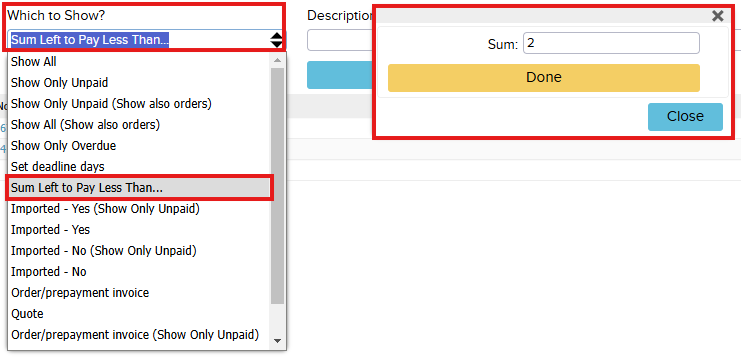
- Next, select the appropriate invoices and press Add Payment, choose the account Rounding expenses and click Save

Mark 100% as paid function
With this function, you can mark invoices fully paid using the invoice’s own date. To do this:
- type in the dashboard search: Mark Sales Invoices as 100% Paid (Multiple at Once)
- a window appears with unpaid sales invoices and a new smaller window
- in the table Select Where Unpaid Sumt < enter a suitable number that selects all invoices whose balance is smaller than the selected amount (e.g. 2) and click on the table
- Payment Date field can be left empty (it uses the invoice date)
- In the Account field, choose Rounding expenses and Save

Using Excel import to mark payments as received
If you have all the necessary information about paid invoices in Excel, you can use the bank import functionality. To do this:
- open Bank Import (in Dashboard or Sales/Purchases → Bank Import)
- choose Enda koostatud CSV/TXT
- press Open and the system simulates a bank import

NB! The Excel file must be in the following format:
- Column 1: Date
- Column 2: Payer
- Column 3: Amount
- Column 4: Description
- Column 5: Category (can be left empty)