
Automatic bank reconciliation
When a customer makes a purchase in the online store and pays via bank, the same transaction appears in two places: in ERPLY Inventory (order + payment) and in ERPLY Books (bank transaction from the bank). These must be matched together; otherwise, a duplicate entry will appear.
Transactions are matched based on 3 parameters:
- Date – the dates must match or fall within the allowed range
- Amount – the amount must match 100% for successful matching
- Description – the description must contain a predefined prefix (e.g. VT-) together with a unique code
To add this configuration, you must add a Global Parameter in ERPLY Books:
- Type “Global Attributes” into the dashboard search.
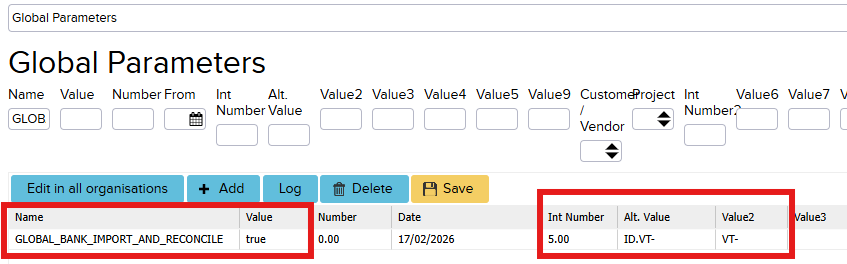
- In the window that opens, add a new attribute by clicking “+ Add”:
- Name: GLOBAL_BANK_IMPORT_AND_RECONCILE; Value: true
Next, you need to configure the additional tables that help find the correct transactions:
- ALT. Value and Value2 columns are used for finding the correct description.
- ALT.Value – searches for the prefix inside the bank transaction description (e.g. ID.VT-…..)
- Value2 – searches for the description from ERPLY Inventory (e.g. VT-……)
- The Int Number column determines how many characters must follow the prefix. This prevents incorrect matches where the prefix exists but the description is not long enough. For example, if Int Number == 5, then VT-”123456” is valid, but VT-”12345” is not.
- To save the attribute, click Save.
Additionally, it is possible to create attributes with the same name but different values in the additional tables. This is necessary, for example, when different prefixes are used in the description
Depending on how the money reaches the bank account, there are two different scenarios:
Direct bank transaction matching
The bank transaction arrives directly in the bank account and quickly reaches ERPLY Books.
The system matches the ERPLY Inventory transaction and the bank transaction in Books automatically. The accountant does not need to intervene manually.
Matching through a clearing account
Used when the money does not reach the bank account immediately but first passes through a clearing account. This is similar to card payments in a store: the store receives the money only on the next day, not immediately.
To enable this, you must add to the Global arameter:
- Value8 == true
- You may also enter a number of days into the Int Number2 column, which determines how late a clearing-account transaction may reach the system.
For example, if Int Number2 == 4, a transfer made on Friday evening (e.g. 23:55) may arrive from the bank on Monday and the matching will still succeed.
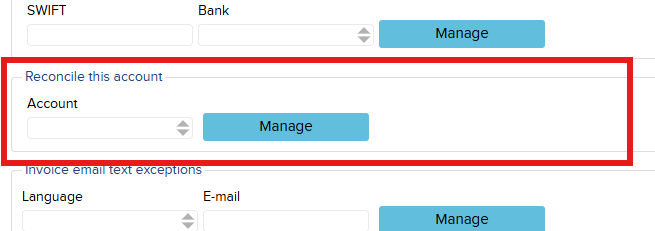
NB! To enable this, you must specify the clearing account in settings:
Settings → Configuration → Reconcile this account – set the clearing account here.
Process Flow
Matching through a clearing account is based on the same logic as card payment reconciliation but works on a one-to-one principle, meaning each bank transaction is matched with exactly one pending transaction.
When a bank transaction arrives, the system automatically checks all unreconciled transactions and searches for a match based on three parameters: description (prefix + ID), amount (100% match), and date (within Int Number2 range).
When a match is found, the system performs two actions in the background:
- Creates a new payment with a credit entry on the clearing account – the money moves from the clearing account to the bank account
- Automatically matches the bank transaction with the corresponding pending transaction – the transaction receives status reconciled
Manual Confirmation
If automatic matching does not go through (e.g. the description does not contain the prefix or the date exceeds the Int Number2 range), you can match the transactions manually:
- Go to “Sales” / “Purchase” → “Bank Import” and find the transaction where the status is Reconciled == no (not reconciled).
- Right-click the transaction and select “Find pending checks”.
- From the list that opens, choose the correct pending transaction and click “Choose” and “Yes”. The amount must match 100%.
- The system creates a credit entry on the clearing account, and the “Reconciled” column will update — the clearing-account cycle is now closed.