
Syncing purchases from Books to ERPLY
By default, ERPLY Books doesn’t sync all products or send purchase invoices back to ERPLY. This tutorial shows you how to set up the necessary rules to enable full synchronization.
Sync all products from ERPLY to Books
First we need to sync all products. For this you need to add Global Parameter:
- Go to Dashboard
- Search for Global Parameters in the Dashboard
- Add a new row (“+ Add”):
- Name: ATTRIBUTE_ERPLY_SYNC_GET_ALL_PRODUCTS
- Value: true
- Click: Save
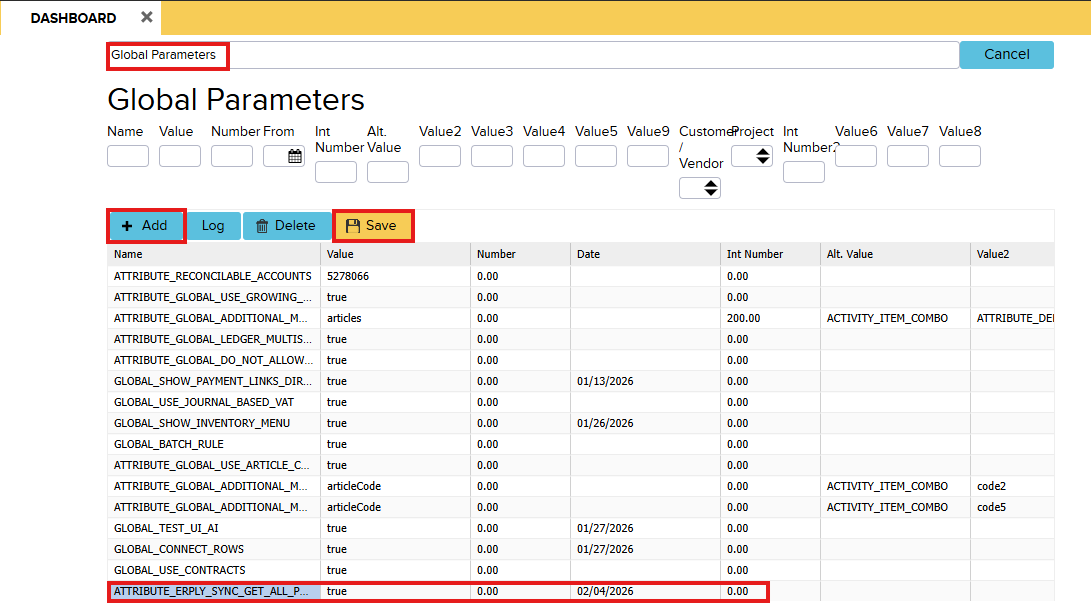
All products from ERPLY will now synchronize to Books.
Sending Invoices to ERPLY
Now for the next thing we need to add a rule that sends invoices to ERPLY. For this add Global Parameter:
- Name: SYNC_SEND_NEW_DOCS_TO_ERPLY
- Value: 1 (This is the last id of documents you want to send. If you want to start from moment X, then find the last document’s id and add this one. If you haven’t sent invoices before, then the value should be 1)
- Int value: 400 (This is the amount of purchase documents selected for one sending. The system will not exceed this limit per synchronization)
- Int value2: 100 (This is the amount of sales documents selected for one sending. The system will not exceed this limit per synchronization. If you don’t create any sales documents in Books, this setting won’t affect you)
This will send all documents to Erply if possible.
Adding new products and suppliers
New products
If you want to add new products in ERPLY then add Global Parameter:
- Enter the following:
- Name: GLOBAL_SEND_ARTICLE_ERPLY
- Value: true
- Value2: Product group ID (Enter the ID of the Product group you want to sync. If you need to add from more than 1 product group in Books then contact support)
New suppliers
- If you want to add new supplier(s) in ERPLY then contact support.
Now when you add purchase invoice in Books that has products that are also in Erply, the system tries to send it to Erply with ordinary sync. This means it is not sent instantly but during the next sync cycle.
If you have any questions or issues, please contact support@erplybooks.com