
Simple batch tracking inventory system
ERPLY Books allows you to use a simple batch tracking inventory system. This works on the FIFO (first in, first out) principle in situations where prices are taken from batches. However, since the prices come directly from batches, it is more accurate than FIFO. Note: This solution is suitable only if you have fewer than 1,000 products. If you have more products, we recommend using the ERPLY warehouse.
A batch is any identifier used for products. For example, if you manufacture custom metal structures, a batch can be a unique product number. Or, if you produce beer and brew 100 units (100 cans), and the batch number is 150, then in ERPLY Books the batch number would be 150.
You can also set a “Best Before” date. These two fields (batch and Best Before) work in the same way. If you add a new “Best Before” date, the system knows which batch the product belongs to. If you add another batch with the same date, it will still be a new batch.
This guide explains how the simple batch tracking inventory system works in ERPLY Books.
Batch Rule
First, you need to activate the rule that enables the system to do batch tracking.
To do this, go to “Settings” -> “Configuration” and find “Batch Rule”.

- Enable: yes or no
- Group: the product group the rule applies to
- Required Field: Batch – if activated, the system will not allow adding any documents without a batch
- Required Field: Best Before – if activated, the system will not allow adding any documents without a best before date
- Missing Value: Add new item
- Type – here you can choose whether to allow negative balances or not, or to allow the system to automatically select a batch that has stock available.
Once all necessary fields are filled, click the green “Save” button, and then refresh the page for the changes to take effect.
If you purchase something at a different price, a new product will be created. And if you sell a product without a warehouse value, the system will automatically select the batch that has actual stock value.
Purchase and Sales articles
The Purchase and Sales articles module allows you to manage all products in stock, their batches, prices, and quantities, and ensures that purchases and sales are recorded correctly and automatically.
Go to “Purchase” / “Sales” -> “Purchase and Sales articles”.
In this example, “Component 1” appears five times. This is a product with the code 88, which is the identifier for the product “Component 1”. If you buy product 88 at different prices, the system will check among these items whether the correct item already exists or if a new one needs to be created. When you sell a product, select the correct batch.
The system then identifies from which batch the product will be taken from the warehouse and what purchase cost should be applied. The batch number and the best before date are displayed. Since neither field was set as mandatory, it was possible to add the product without a best before date.
If a batch expires — for example, if the best before date was two years ago — you can simply mark these items as inactive by removing the checkmarks from the columns “Article in Sales Invoices” and “Article in Purchase Invoices”. Then click the green “Save” button.

Purchasing and Selling Products
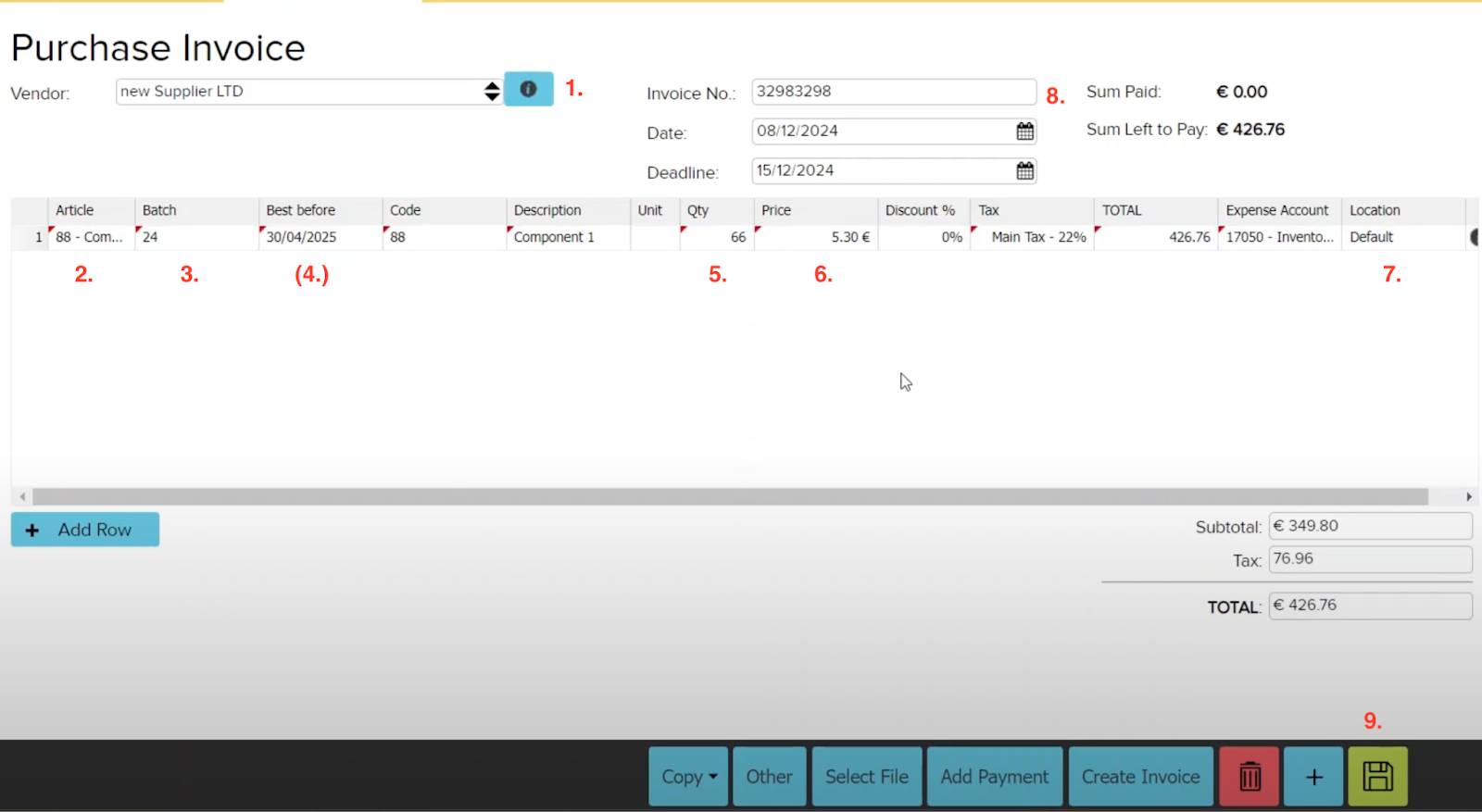
All purchases are made through “Purchase” -> “Purchase Invoice (Add New)”.
First, enter the required information such as the supplier, item, batch, quantity, price, department (project where the purchase took place), and the invoice number. You can also modify the fields according to your company’s needs. Once all data is entered, click the green “Save” button.
All sales are made through “Sales” -> “Sales Invoice (Add New)”.
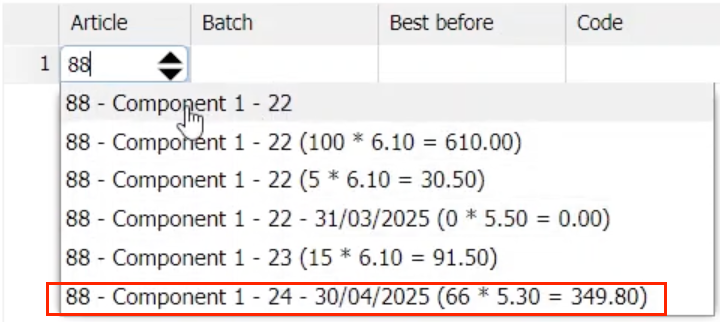
When selecting an item, the purchased products will appear on a list. You will also see the stock quantities and the corresponding purchase prices (quantity * purchase price = total value). If the quantity is 0, it means that the batch is sold out.
If an item has no quantity and price — meaning no value — it means that this batch was not purchased at that price.
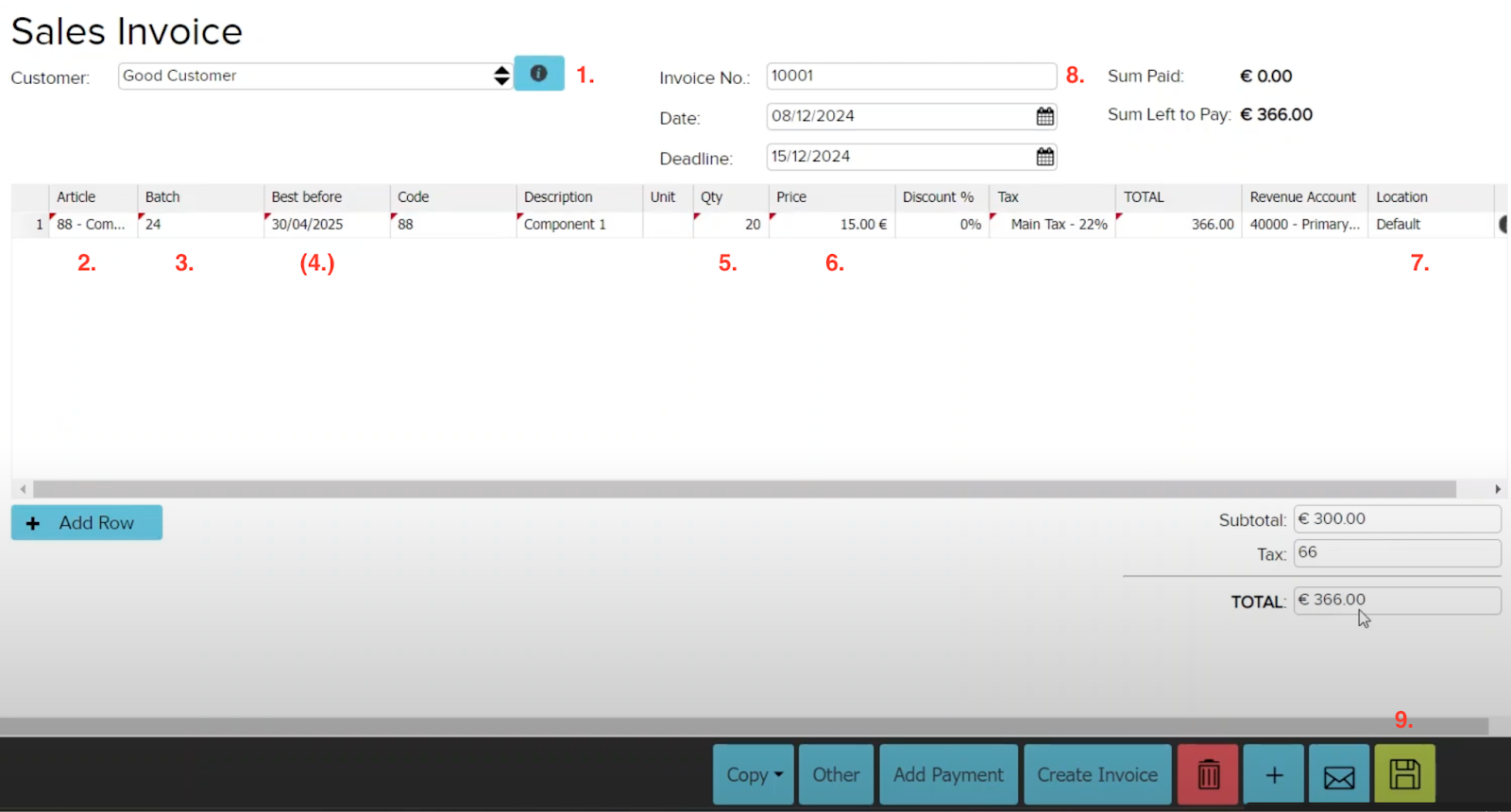
Just like in purchases, you need to add the customer, item, batch, quantity, price, department (project where the purchase took place), and the invoice number. Fields can be adjusted as needed. Once complete, click the green “Save” button.
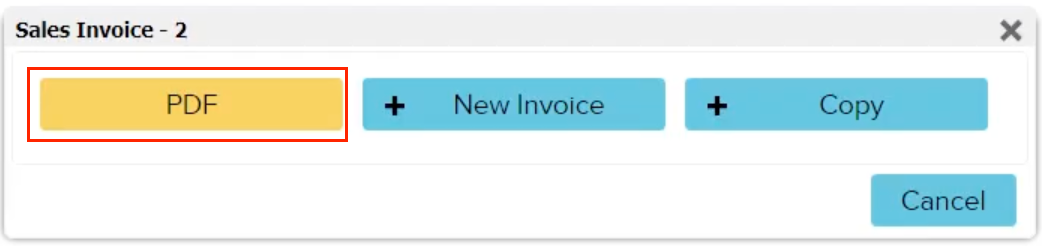
After saving, you can view the invoice by clicking the yellow “PDF” button. The invoice should automatically display the batch number and best before date (if added).
You can also view the entries related to this invoice. Go to “Other” -> “Transactions” and open the desired one.

The opened transaction will look like this:
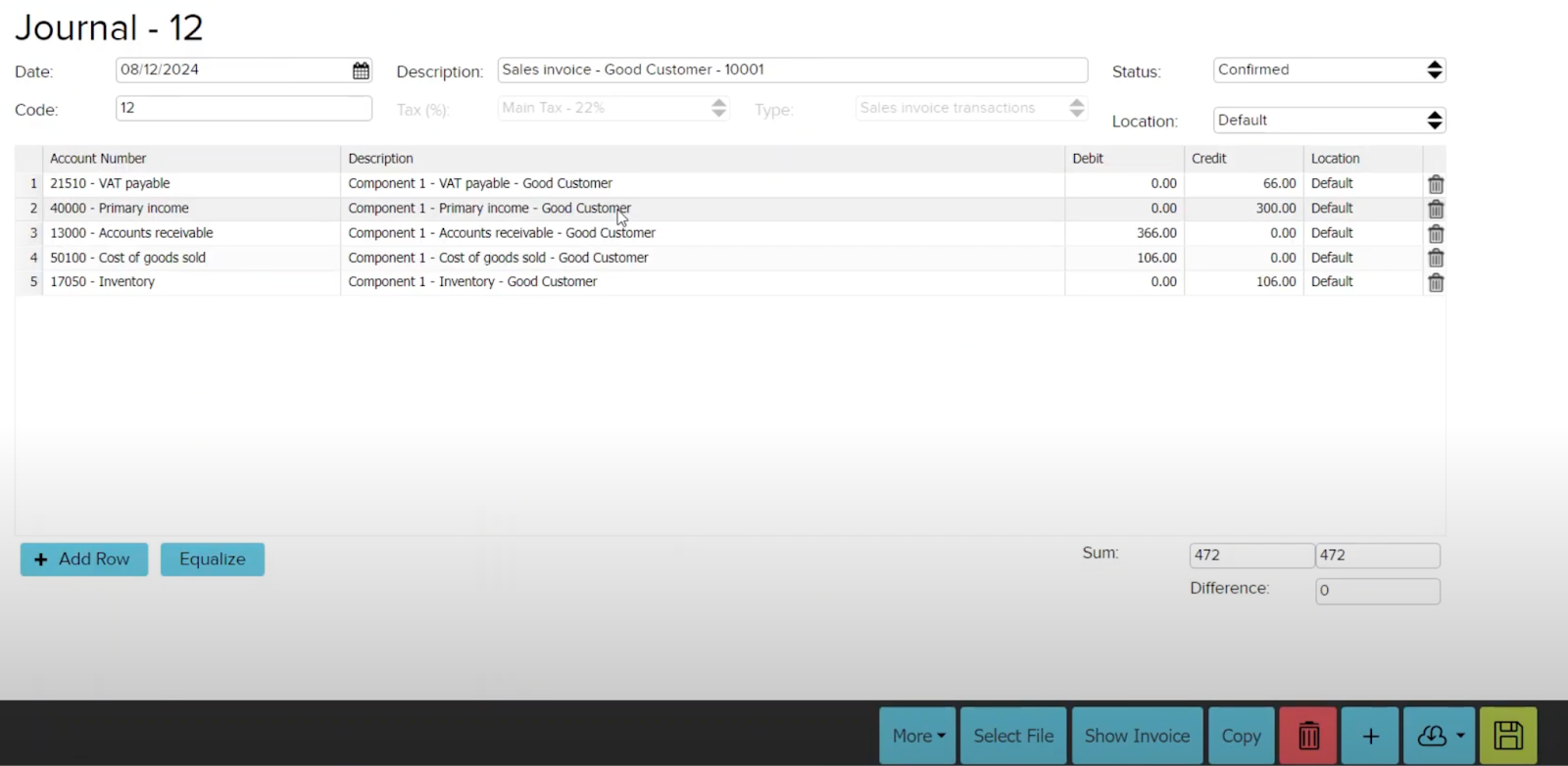
From the “Cost of Goods Sold” field, you can see that the transaction amount is 106, and on the sales invoice it is displayed that 20 units were sold. Dividing this gives the unit price of 5.3 (106 / 20 = 5.3). This result is correct if you check the respective component in the “Purchase and Sales articles” module under “Cost of Goods Sold.”

The system determines the purchase price exactly according to the selected batch. This means that you can set a default batch, specify the batch number used, the best before date, or both. The system works automatically and ensures the accuracy and correct reflection of data in the documents.
Inventory value report
You can view this report by going to “Inventory” -> “ Inventory Value Report”.
The report can be displayed by item. First, set the desired period and department. You can further refine the report by using the “Add Filter” button to specify which products should be included.

For example, if you select product code 88 via “Add Filter,” all goods with stock and that code will be displayed. If you also check “Show All?”, the system will also display products without stock. It is possible to search by other parameters as well.

The purchase price of each batch is also displayed. Since this is a simple batch tracking inventory system, neither FIFO (first in, first out) nor the weighted average cost method is used. This method means that the inventory value is calculated exactly considering the price at which the goods were actually purchased.

The system assumes that you don’t have tens of thousands of products, but a maximum of about 5,000. With this simple batch tracking method, you can manage production processes and essentially meet the needs of any company requiring the use of batch numbers.
You only need to assign batches correctly to invoices and stock registrations, and the system will work automatically in the background for you.
You can also watch a video about how the simple batch tracking inventory system works here:
https://www.youtube.com/watch?v=blvF6gFLATI